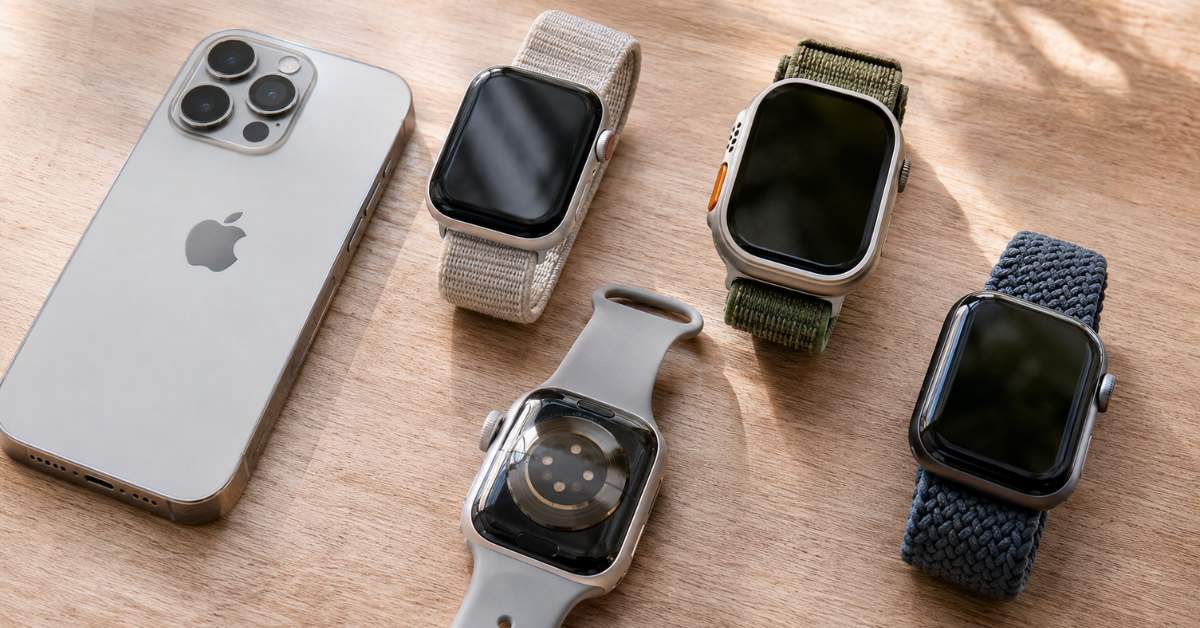
An Apple Watch doesn’t always have its generation printed somewhere obvious on the front. If you’ve owned yours for a few years, received it as a gift, or bought it second-hand, you might not remember exactly which version you have. The problem usually becomes noticeable when you need a replacement band, want to install a software update, or start looking for repair options. Fortunately, identifying your Apple Watch is fairly straightforward once you know where to look.
The Quickest Way to Find Your Apple Watch Model
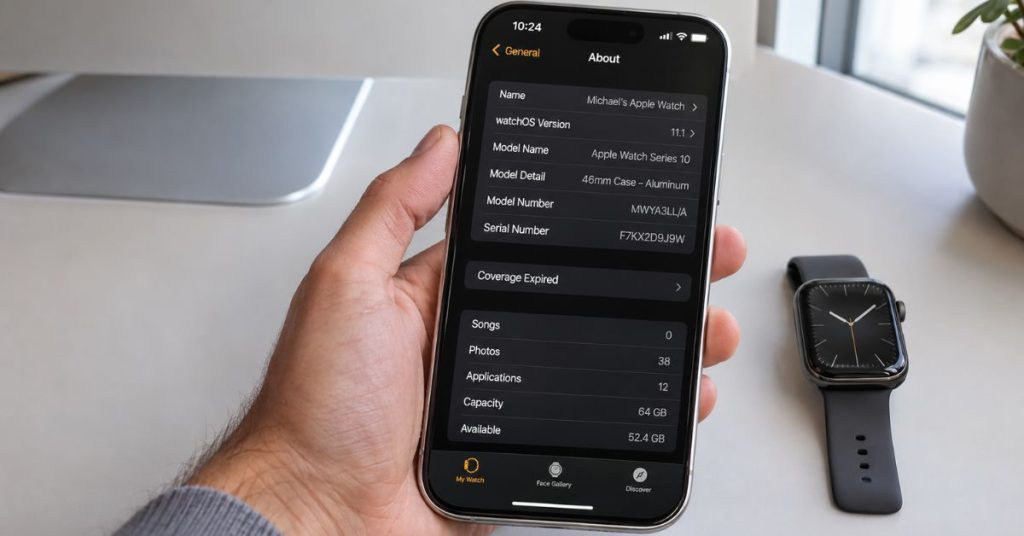
Grab the iPhone connected to your Apple Watch. You can find most of the information you need without touching the watch itself.
- Launch the Watch app on your iPhone.
- Go to My Watch.
- Select General and open About.
- Find the Model Number entry.
- Tap the number to reveal an identifier beginning with A.
That identifier is your hardware model number.
For example, A2997 belongs to the 42mm GPS version of the Apple Watch Series 10. A2723 identifies the 44mm GPS version of the second-generation Apple Watch SE.
Enter your number into the page search function on Apple’s official identification guide to locate the corresponding model.
If the number starts with M, tap it again. You’re probably looking at the product’s part number rather than its hardware identifier.
1. Find the Model Through Your Apple Watch Settings
Don’t have your iPhone nearby? You can retrieve device information directly from the watch.
Press the Digital Crown and open Settings. From there, go to General > About.
Scroll through the page until you reach the device information. Depending on your model and installed software, you may see its name, model number, serial number, storage capacity, and watchOS version.
The model name might be enough if you’re simply curious about which generation you own. However, the hardware number is worth recording if you intend to buy replacement parts or check regional cellular compatibility.
People who own several Apple Watches should also be careful not to confuse a personalized device name with the actual product name. Calling your device “John’s Apple Watch” doesn’t tell you anything about its generation.
2. Turn Your Apple Watch Over and Read the Engraving
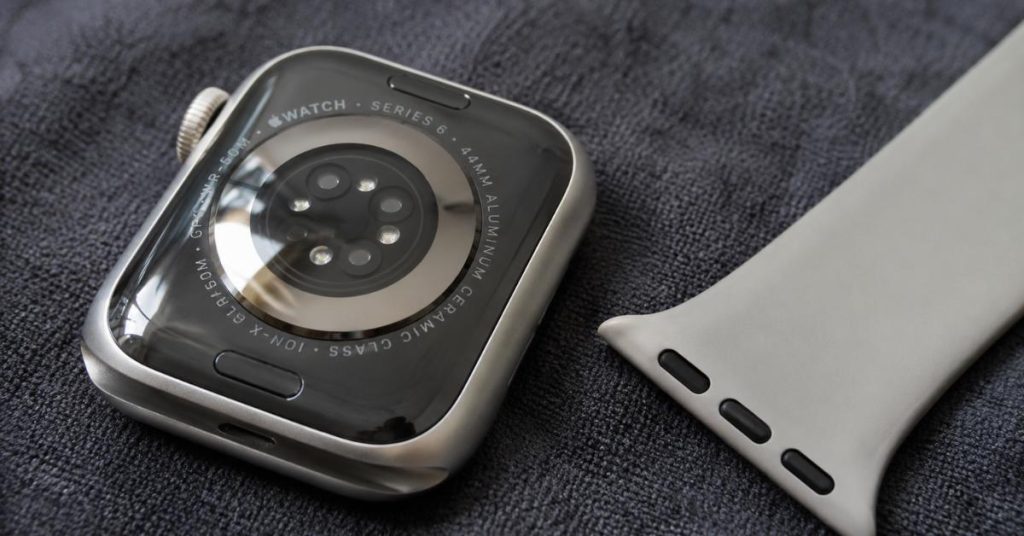
Take the watch off your wrist and look closely at the area surrounding the rear sensors.
Apple places identifying information on the back of many Apple Watch models. The lettering can reveal the case size, product family, and construction materials.
For example, the markings on an Apple Watch Series 8 may identify its generation and whether it has a 41mm or 45mm case.
The writing is quite small, particularly on older watches that have accumulated dirt around the sensors. A close-up photograph taken with your phone can make the lettering much easier to read.
You don’t need to open the watch or remove its rear panel.
There is one exception worth considering. If the watch has previously undergone a housing replacement, the information engraved on the replacement case might not match the internal hardware. Electronic device information is preferable in that situation.
3. Look Under the Band for the Serial Number
A completely unresponsive Apple Watch can still provide useful identification information.
Apple places the serial number inside the band attachment slot on Series 1 and subsequent generations, including the SE and Ultra collections.
The original Apple Watch from 2015 uses a different location: its serial number is engraved on the rear case.
To inspect the band slot, rest your watch on a soft microfiber cloth. Press the small release button near the band attachment and carefully move the band sideways until it comes free.
Look inside the exposed slot for the serial number.
Avoid inserting sharp objects into the opening or forcing a stuck band. If you’re using a Link Bracelet, separate the bracelet before attempting to remove it.
Apple’s band removal guide illustrates the correct technique.
Once you have the serial number, visit Apple’s coverage checker or contact Apple Support. These services may provide useful information about the device and its service eligibility.
Apple also provides illustrations showing the serial number location.
4. Check Which Apple Watch Is Registered to Your Apple Account
Imagine that you’ve lost your watch while travelling and need its device details for an insurance claim. Checking its physical markings obviously isn’t an option.
Your Apple Account may still contain the information you need.
Open Settings on your iPhone, select your name at the top, and scroll down to the connected devices. Choose your Apple Watch to inspect the available details.
You can do the same thing from a computer by signing in at account.apple.com and opening the Devices section.
This method is also useful when an old watch is stored somewhere inaccessible but remains connected to your account.
However, you won’t necessarily find watches that have already been removed from the account. Don’t remove a connected device simply to retrieve its information.
5. Check Your Original Box, Receipt, or Order History
The original packaging is often overlooked.
Apple Watch boxes generally contain product labels with details about the configuration purchased. You may find the product name, case dimensions, part number, or serial number.
Online purchase confirmations are another useful place to look. Search your email account for the retailer’s name or phrases such as “Apple Watch order confirmation.”
If you purchased the watch directly from a retailer, your account’s order history may contain a detailed product description.
Just remember that a box can belong to a different watch. This matters particularly when dealing with second-hand electronics.
Matching the serial number on the packaging with the number associated with the device provides stronger evidence than relying on the box alone.
6. Identify Your Apple Watch by Its Case Size
Size is useful for narrowing down your options, but it can also lead you in the wrong direction.
A watch marked 44mm, for instance, could belong to one of several Apple Watch generations. The measurement alone doesn’t identify its release year or internal hardware.
Here is how several generations compare.
| Apple Watch generation | Available case sizes |
| Apple Watch SE | 40mm and 44mm |
| Apple Watch SE 2 | 40mm and 44mm |
| Apple Watch SE 3 | 40mm and 44mm |
| Apple Watch Series 7 | 41mm and 45mm |
| Apple Watch Series 8 | 41mm and 45mm |
| Apple Watch Series 9 | 41mm and 45mm |
| Apple Watch Series 10 | 42mm and 46mm |
| Apple Watch Series 11 | 42mm and 46mm |
| Apple Watch Series 12 | 42mm and 46mm |
| Apple Watch Ultra family | 49mm |
The Ultra family stands out because of its larger case and additional Action button. Even so, these characteristics won’t tell you whether you own the original Ultra or a subsequent generation.
The standard Series and SE collections can be particularly difficult to distinguish visually.
Check the hardware number before making a purchase that depends on the exact generation.
7. Match Your Apple Watch Model Number
Once you’ve found the identifier beginning with A, the hardest part is over.
The table below contains selected hardware model numbers from Apple’s published documentation. Both case sizes are shown for the included Series and SE GPS generations.
| Apple Watch model | Smaller variant | Larger variant | Connectivity |
| Series 12 | A3581 – 42mm | A3584 – 46mm | GPS |
| Ultra 4 | A3579 – 49mm | GPS + Cellular | |
| Series 11 | A3331 – 42mm | A3333 – 46mm | GPS |
| Ultra 3 | A3281 – 49mm | GPS + Cellular | |
| SE 3 | A3324 – 40mm | A3325 – 44mm | GPS |
| Series 10 | A2997 – 42mm | A2999 – 46mm | GPS |
| Series 9 | A2978 – 41mm | A2980 – 45mm | GPS |
| SE 2 | A2722 – 40mm | A2723 – 44mm | GPS |
| Series 7 | A2473 – 41mm | A2474 – 45mm | GPS |
| SE (1st generation) | A2351 – 40mm | A2352 – 44mm | GPS |
Source: Apple Watch model identification documentation.
This is a selection of models rather than a complete catalogue. Several newer identifiers shown here apply to North America, Europe, and Asia Pacific. Other regional releases and cellular configurations can have different hardware numbers.
For example, the 42mm Series 10 GPS model carries the identifier A2997 in those regions, while certain versions sold in mainland China and Indonesia use A2998.
If you cannot find your number in the table, search Apple’s complete list before assuming something is wrong.
8. Work Out Whether You Have GPS or Cellular
Two watches from the same generation can have different connectivity options.
A GPS + Cellular Apple Watch can connect to supported cellular networks when it has an appropriate service plan. A GPS-only model doesn’t have that cellular capability.
The IMEI is a useful way to distinguish between them.
Go to General > About in the watch’s Settings app or the Watch app on your iPhone. Look for an entry labelled IMEI.
According to Apple, this identifier is available exclusively on Apple Watch GPS + Cellular models.
You may also notice a red or orange ring on the Digital Crown of certain cellular watches. However, the appearance varies across generations, so the ring isn’t the best universal identification method.
It’s also possible to own a cellular Apple Watch without having an active mobile subscription. The presence of cellular hardware doesn’t mean you’re currently paying for a smartwatch plan.
Which Identification Method Works Best for Your Situation?
Not everyone has a functioning watch, its original packaging, or the paired iPhone. Choose an approach based on what you actually have available.
| Your situation | Recommended method | Information available | Main limitation |
| Watch paired to iPhone | Watch app | Model number and device details | Requires paired iPhone |
| iPhone unavailable | Watch Settings | Hardware and software information | Watch must be accessible |
| Broken display | Rear engraving | Case size and product clues | Markings may be damaged |
| Watch won’t power on | Band-slot serial number | Individual device identifier | May require Apple Support |
| Lost Apple Watch | Apple Account | Registered device information | Watch must remain associated |
| Original packaging available | Product label | Purchased configuration | Box may belong to another watch |
| Checking cellular support | IMEI and model number | Connectivity configuration | Doesn’t establish active service |
Apple’s identification documentation and coverage checker are free to use. Paying for third-party identification software is rarely necessary.
Why the Exact Model Is Worth Knowing
Buying a New Band or Protective Case
Imagine ordering a protective case advertised for a 45mm Apple Watch, only to discover that it doesn’t fit your particular device.
Bands and protective cases don’t always follow the same compatibility rules. Many bands work across multiple generations, while protective cases may have stricter requirements because of differences in the watch body and button placement.
Check the manufacturer’s compatibility information before placing an order.
Apple maintains a useful band compatibility reference that explains which case sizes can share compatible bands.
Understanding Why a Software Update Isn’t Available
An older Apple Watch can continue working long after it stops supporting newer major watchOS releases.
For instance, Apple lists watchOS 8.8.1 as the maximum supported version for Series 3. The original Apple Watch SE and Series 5 support versions up to watchOS 10.6.1.
Installing a newer operating system on your iPhone won’t change the hardware limitations of an older smartwatch.
Before spending time troubleshooting an apparently missing update, check Apple’s iPhone and Apple Watch compatibility list.
The missing update might simply be a compatibility issue rather than a software fault.
Getting the Correct Replacement Parts
Repair shops need more information than the watch’s color or screen size.
A display, battery, or other internal component designed for one generation may not work with another, even when their external dimensions look identical.
When requesting a repair estimate, provide the generation, hardware model number, case size, and a description of the fault.
Check your existing service coverage before committing to a paid repair.
Buying a Second-Hand Apple Watch? Check More Than the Model
Finding a genuine model number doesn’t automatically mean you’ve found a good deal.
Activation Lock is one of the most important things to check. A watch that remains linked to its previous owner’s Apple Account may be impossible for you to activate without their assistance.
Ask the seller to unpair the device and remove Activation Lock before completing the transaction.
Inspect the glass for cracks, check the side button and Digital Crown, and look for signs of damage around the case.
If the watch works, open Settings > Battery > Battery Health to examine its battery condition.
Starting the pairing process with your own iPhone can reveal whether the device still requires the previous owner’s account credentials.
Don’t rely exclusively on a serial number accepted by Apple’s coverage checker. That alone doesn’t establish the watch’s physical condition, authenticity, or ownership status.
Common Identification Mistakes
Confusing the Serial Number With the Model Number
A serial number belongs to an individual device. A hardware model number is shared by watches of the same variant.
For generation and hardware compatibility checks, the A-prefixed model identifier is generally more useful.
Judging the Generation by Its Color
Apple sometimes offers similar finishes across several product generations. A black, silver, or gold watch isn’t necessarily from a particular release year.
The color may help narrow down the possibilities, but it shouldn’t be your main evidence.
Using watchOS to Identify the Exact Model
Several generations can run the same operating system version.
Even if you know which watchOS release is installed, you may still need to check the hardware identifier to determine the generation.
Erasing the Watch to Access Its Information
A factory reset isn’t required for ordinary Apple Watch identification.
Erasing the watch introduces unnecessary data-loss risks and doesn’t automatically remove Activation Lock. Try the physical markings, device settings, or account information instead.
Frequently Asked Questions
Can I tell what Apple Watch I have without an iPhone?
Yes. Open Settings > General > About directly on your Apple Watch. If the display isn’t working, examine the rear case or check the serial number beneath the band.
How do I know whether I have an Apple Watch SE 2 or SE 3?
Both generations offer 40mm and 44mm cases. Their dimensions aren’t enough to distinguish them, so compare the hardware model number with Apple’s official identification documentation.
Can I identify an Apple Watch that has a broken screen?
Yes. Its rear engraving, serial number, original packaging, and Apple Account information may help establish its identity without using the touchscreen.
Does a 45mm Apple Watch mean I have a Series 7?
Not necessarily. Series 7, Series 8, and Series 9 all offer 45mm models. Check the hardware number to determine which generation you own.
What does the M at the beginning of my Apple Watch model number mean?
The Watch app initially shows a product part number, which commonly begins with M. Tapping the field reveals the A-prefixed hardware model number used in Apple’s identification guide.
Can I find out what Apple Watch I have for free?
Yes. You can retrieve the device information from its settings and compare it with Apple’s publicly available documentation. No paid identification application is required.
Final Thoughts
Start with the Watch app if you want a quick answer. If your Apple Watch is broken, missing, or disconnected from its paired iPhone, there are still several ways to retrieve useful identification details.
The important distinction is between recognizing a watch by appearance and confirming its actual hardware. A familiar design or matching case size can narrow the possibilities, but the model number provides a much more dependable answer.
Keep that number somewhere accessible. It’ll come in handy the next time you need a replacement accessory, software compatibility check, or repair estimate.