Losing access to a hard drive does not always mean paying thousands of dollars to get your files back. Sometimes the problem is accidental deletion or file system corruption. In other cases, a damaged controller, failed read/write heads or scratched platters require specialist equipment and more expensive repairs.
The price also changes with the storage device. A standard hard drive, an NVMe SSD and a multi-drive NAS array do not follow the same recovery process.
This guide compares publicly available recovery prices, explains what different services include, and provides a practical way to calculate potential costs before requesting a quotation.
Published Data Recovery Prices
Only a limited number of providers publish detailed recovery prices. Others prefer to inspect the storage device before giving customers a quotation.
For a useful comparison, it helps to separate providers with published service tiers from companies that calculate prices after diagnosis.
Specialist laboratory pricing
Rossmann Repair Group publishes the following standard hard drive rates on its pricing page. These are US-dollar prices checked on November 22, 2026.
| HDD recovery work | Published price |
| Copying data from a working drive | $100 |
| File system recovery | From $250 |
| Firmware repair | 600–900 |
| Read/write head replacement | 1,200–1,500 plus donor |
| Platter surface damage | $2,000 |
The same provider lists separate pricing for other storage technologies:
| Storage type | Published price |
| Standard SATA SSD | 200–1,500 |
| NVMe SSD | 200–2,500 |
| Helium-sealed HDD | 200–5,000+ |
| RAID/NAS | Per-member imaging plus one array reconstruction fee |
These prices represent one laboratory’s published rate card, not a market-wide average. Additional charges can apply for donor components, destination drives, taxes and other required services.
Source: Rossmann Repair Group – Data Recovery Pricing.
Best Buy Geek Squad pricing
Best Buy also publishes a recovery price chart on its official website. Its service uses four recovery levels.
| Service level | Type of recovery | Published price |
| Level 1 | Deleted files, formatting and basic access problems | $200 |
| Level 2 | File system corruption and drive imaging | $450 |
| Level 2 Advanced | Advanced hardware or firmware work | $550 |
| Level 3 | Physical damage requiring cleanroom work | $1,450 |
Best Buy also lists a separate $49.99 initial diagnostic charge. Its service description says simple in-store recovery costs an additional $200 after the initial appointment. Confirm the complete amount and any membership discounts before approving service.
This is a retailer’s service schedule, not a direct comparison with a specialist laboratory’s individual repair tiers.
Source: Best Buy – Geek Squad Data Recovery.
Companies that provide a quotation after evaluation
Some established recovery providers do not publish fixed numerical prices for standard hard drive recovery.
| Provider | Published pricing approach |
| Ontrack | Free evaluation and a no-obligation recovery quotation |
| DriveSavers | Free evaluation followed by a price range; the final amount cannot exceed the original maximum quote |
| Secure Data Recovery | Free diagnostics and an individual recovery quotation |
These services are harder to compare using a simple price table because the final amount depends on the diagnosis.
DriveSavers also explains that successful recovery generally falls within the top third of its original quoted price range. Ontrack and Secure Data Recovery provide their own evaluation and quotation arrangements.
Sources: Ontrack, DriveSavers, and Secure Data Recovery.
The Main Factors Behind a Recovery Quote
A recovery company’s diagnosis usually matters more than the total number of files stored on the drive.
Logical damage
Logical problems affect the way files and partitions are organized. Examples include accidental deletion, formatting, damaged directories and file system corruption.
When the hardware remains readable, recovery software may be sufficient. More complicated cases require professional imaging and file system reconstruction.
Firmware and electronic faults
A drive may stop responding even though its storage components remain physically intact.
Firmware corruption can prevent the operating system from identifying the device correctly. An electronic failure may involve the controller, circuit board or power components.
The required repair depends on the hardware and the type of fault.
Mechanical failure
Mechanical failures can involve the read/write heads, motor or internal moving components.
A head replacement may require compatible donor parts and specialist equipment. If the platter surface is damaged, the remaining readable information may be limited.
These cases generally require a more involved recovery process than accidentally deleted files.
SSD and NVMe Recovery
Solid-state drives store information in NAND flash memory rather than magnetic platters.
The controller, firmware and flash memory work together to manage the stored information. When one of these components fails, the recovery process depends on the original fault.
SATA SSDs and NVMe drives also use different interfaces and controller architectures, so their diagnostic and recovery procedures are not identical.
Rossmann’s published SATA and NVMe price ranges appear in the storage comparison above.
Why deleted SSD files are difficult to recover
TRIM is an important reason.
When a compatible operating system deletes a file, it can notify the SSD that certain storage blocks are no longer required. The controller can then reclaim those blocks through garbage collection.
Kingston explains that TRIM and garbage collection work together to manage previously used flash storage blocks.
This does not mean every deleted SSD file disappears instantly. Whether data remains recoverable depends on TRIM support, whether the command was issued, and whether the controller has processed the affected blocks.
After deleting important information, avoid additional activity on the SSD.
Technical reference: Kingston – SSD TRIM and Garbage Collection.
Helium-Sealed Hard Drives
Helium-filled enterprise drives require additional considerations when mechanical repairs become necessary.
Their sealed construction and internal operating requirements make a head replacement more complicated than a standard air-filled drive repair.
Rossmann publishes the following helium-related figures:
| Repair category | Published price |
| Simple copy | $200 |
| File system recovery | $600 |
| Firmware repair | 900–1,200 |
| Mechanical head replacement | 3,000–4,500 |
| Platter surface damage | 4,000–5,000 |
Mechanical head and surface-damage jobs also require a helium refill, listed separately at 400–800. Compatible donor parts can add another charge.
These are provider-specific figures and may not reflect the prices of other laboratories.
Source: Rossmann – Helium Drive Recovery.
Calculating the Cost of a Four-Drive NAS Recovery
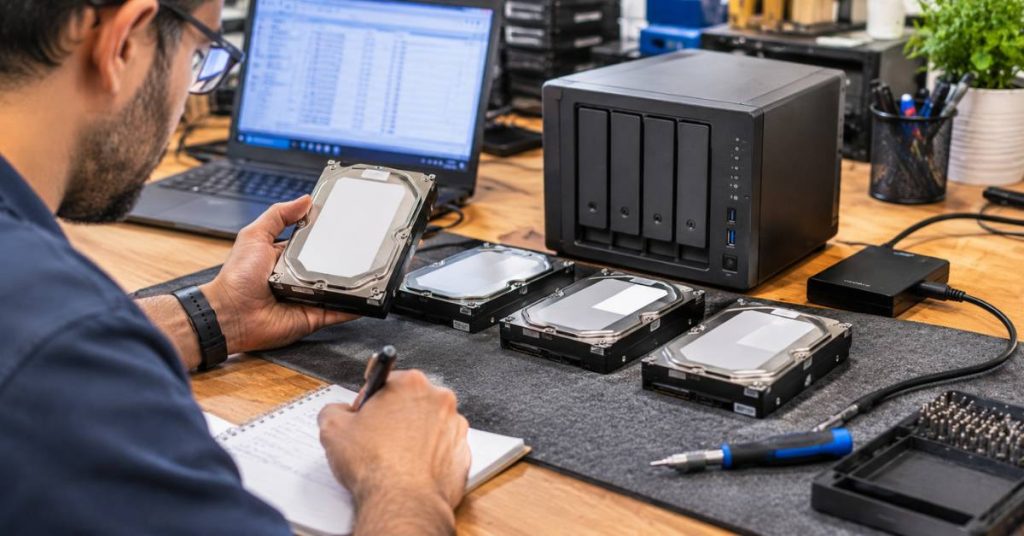
A NAS recovery can involve multiple individual drive images followed by reconstruction of the array.
Rossmann publishes a two-part pricing structure:
- A separate imaging fee for each member drive.
- One array reconstruction fee of 400–800.
Importantly, the provider explicitly identifies the $250 starting price as the per-member imaging fee for file system corruption. It also lists $100 per member for a healthy drive that only needs a simple clone.
That distinction changes the calculation.
Scenario A: Four healthy drives needing a simple clone
| Work | Calculation | Cost |
| Member drive imaging | 4 × $100 | $400 |
| Array reconstruction | One fee | 400–800 |
| Estimated total | 800–1,200 |
Scenario B: Four drives requiring file system recovery
| Work | Calculation | Cost |
| Member drive imaging | 4 × $250 starting price | $1,000 |
| Array reconstruction | One fee | 400–800 |
| Estimated total | 1,400–1,800 |
The second example assumes that every member requires the file system recovery tier. It is not a general price for every four-drive NAS.
Scenario C: Three healthy drives and one corrupted drive
Real recovery jobs do not always fall neatly into one category. One member might have file system corruption while the remaining drives only need straightforward imaging.
Using the same published starting prices:
| Work | Calculation | Cost |
| Three healthy drives | 3 × $100 | $300 |
| One corrupted drive | 1 × $250 | $250 |
| Array reconstruction | One fee | 400–800 |
| Estimated total | 950–1,350 |
This third scenario illustrates why the condition of each member drive matters. Charging all four drives at the same recovery tier could produce a misleading estimate.
How to calculate your own NAS recovery estimate
Use this simple formula:
Total estimate = Individual member-drive imaging fees + one array reconstruction fee + additional charges.
Before comparing prices, make a list of the drives and their known symptoms. For example, a four-drive array might contain two healthy drives, one drive with file system errors, and one drive that has disappeared.
The laboratory must still diagnose the devices, but this breakdown gives you a useful starting point for checking whether its quotation is itemized correctly.
The calculations above are based on Rossmann’s published fees, not actual customer invoices. A member needing firmware or mechanical work would change the total substantially.
Source: Rossmann NAS recovery pricing.
Deciding Whether Professional Recovery Is Economically Sensible
A large quotation is not automatically unreasonable. It needs to be compared with the consequences of permanently losing the files.
The following decision guide can help:
| Your situation | Reasonable next step |
| You have another verified backup | Restore from backup before considering laboratory recovery |
| Important photographs have no other copy | Request an evaluation |
| Business records cannot be recreated | Compare the quote with the cost of business interruption and reconstruction |
| Files are replaceable downloads | Consider whether the recovery fee is justified |
| The quotation is higher than the value of the missing information | Declining the service may be more sensible |
For important personal or business files, request an estimate before deciding. Avoid committing to a costly repair based only on an advertised starting price.
Free Recovery With Windows File Recovery
Microsoft provides Windows File Recovery as a free command-line application for Windows 10 and Windows 11.
It is designed to recover deleted files from supported local storage devices, including internal drives, external storage and USB devices.
First, install the application through the Microsoft Store. Then use a different destination drive to save the recovered information.
For example:
winfr C: E: /regular /n \Users\<username>\Documents\
Microsoft supports two main recovery modes:
| File system | Situation | Mode |
| NTFS | Recently deleted files | Regular |
| NTFS | Deleted some time ago | Extensive |
| NTFS | Formatted or corrupted | Extensive |
| FAT or exFAT | Supported recovery situations | Extensive |
The source and destination must be different drive letters. Ideally, use separate physical devices.
Avoid installing additional applications or saving new files to the affected storage.
Official instructions: Microsoft Windows File Recovery.
Checking SMART Health on Windows and macOS
SMART stands for Self-Monitoring, Analysis and Reporting Technology. It allows compatible storage devices to report health information and recorded diagnostic errors.
The smartmontools project provides smartctl, which can read this information.
Windows instructions
Install smartmontools from its official installation guide.
Open Windows Terminal with administrator permissions and run:
smartctl –scan-open
Find your drive’s device identifier, then request the diagnostic report:
smartctl -a <device-id>
macOS instructions
Open Disk Utility from Applications > Utilities.
Select the physical storage device and click Info. Apple explains that compatible disks can display their SMART status through Disk Utility.
For additional diagnostic information, smartmontools can also be used:
smartctl –scan-open
Then:
sudo smartctl -a <device-id>
A PASSED result does not guarantee that a disk will never fail. It simply means the device has not reported an overall SMART failure through that assessment.
Apple also warns that a reported fatal hardware error cannot be corrected by ordinary software repair tools.
References: smartmontools installation and usage, smartctl manual, and Apple – Check if a Mac Disk Is About to Fail.
BitLocker and Encrypted Drives
Encryption can make an otherwise successful physical recovery useless if the required key is missing.
Microsoft uses a 48-digit BitLocker recovery key to unlock affected encrypted drives.
Check your Microsoft account, work or school account, saved USB storage and printed documents for the key.
Microsoft Support cannot retrieve or recreate a lost recovery key.
When requesting professional recovery, tell the laboratory that BitLocker is enabled and confirm that you can provide the key.
Reference: Microsoft – Find Your BitLocker Recovery Key.
Manufacturer Recovery Coverage
Some Seagate products include Rescue Data Recovery Services.
Coverage depends on the product, warranty and region.
For its US product page, Seagate currently advertises a recovery attempt of up to 15 business days. Successful recovery is returned on an encrypted storage device.
Check your product’s serial number and applicable terms before arranging another paid service.
Source: Seagate Rescue Data Recovery Services.
A Quote Request You Can Send to Recovery Companies
Instead of comparing unrelated starting prices, provide the same details to every company.
For NAS and RAID jobs, ask for a separate charge for every member drive. A single total without a breakdown makes it difficult to see whether all disks have been placed in the same recovery category.
Subject: Request for Hard Drive or NAS Data Recovery Estimate
Hello,
I need a recovery assessment for the following storage device.
Device type: [HDD / SATA SSD / NVMe / NAS]
Brand and model: [Enter model]
Capacity: [Enter capacity]
Number of drives (if NAS/RAID): [Enter number]
RAID configuration (if known): [RAID 0 / 1 / 5 / 6 / 10 / Other]
Symptoms: [Clicking / Not detected / Deleted files / File system corruption]
Encryption: [BitLocker / Other / None / Unsure]
Please provide a written estimate explaining:
- The failure type identified during evaluation.
- The imaging or recovery price for each individual drive.
- The separate array reconstruction fee, if applicable.
- Whether donor components and destination storage are included.
- Any additional shipping, diagnostic or service charges.
- What happens if recovery is unsuccessful.
- Whether I can decline the quotation after evaluation.
- The estimated turnaround time.
- Your customer-data privacy and handling procedures.
Please also confirm whether any additional payment requires my approval before proceeding.
Thank you.
Compare the quotations using the same breakdown
| Cost item | Provider A | Provider B | Provider C |
| Evaluation or diagnosis | |||
| Imaging of drive 1 | |||
| Imaging of drive 2 | |||
| Imaging of drive 3 | |||
| Imaging of drive 4 | |||
| Array reconstruction | |||
| Donor components | |||
| Destination storage | |||
| Failed-recovery charges | |||
| Estimated total |
The purpose of this worksheet is to make each company’s estimate comparable. One provider might charge more for individual drive imaging but include additional work in its reconstruction price. Another might advertise a lower starting figure but list donor parts and destination storage separately.
Compare the complete quotation, not just the first number.
Preventing Another Data Loss Incident
The 3-2-1 backup rule provides a practical way to protect important information.
Keep three copies of your files, use two different types of storage media, and store one copy somewhere separate from the main location.
For example, you can keep the original files on your computer, another copy on an external drive and an additional backup in cloud storage.
Test your backups periodically. Open some files and restore a few examples instead of relying only on the backup application’s success message.
CISA’s Data Backup Options guide explains the 3-2-1 principle and why multiple backup copies provide additional protection.
How This Guide Was Researched
This guide was prepared by reviewing provider-published price lists, official service pages, manufacturer documentation and technical references.
The HDD, SSD, helium and NAS figures are attributed to their publishing provider. Best Buy’s figures come from its official Geek Squad pricing chart. Other companies are included to show how free evaluations and individual quotations differ from fixed public rates.
The three NAS scenarios are calculations using the provider’s published per-member imaging and array reconstruction charges. They show how different combinations of drive conditions affect the estimated cost. They are illustrative calculations, not completed customer recoveries or private quotations.
No laboratory was contacted for a private estimate, and no damaged drive was submitted for physical recovery. The Windows and SMART instructions are documented procedures, not claimed test results.
About the Author
I’m Muaz, the editor of TechCrashFix. For more than seven years, my work has involved hands-on software debugging and practical technology troubleshooting. I focus on understanding technical problems, examining why systems behave differently, and explaining solutions in a way that readers can follow.
For this guide, I used that troubleshooting background to examine recovery pricing structures, distinguish individual drive imaging charges from array reconstruction fees, and turn published provider rates into practical cost scenarios.
My experience is in software debugging and technical troubleshooting rather than cleanroom data recovery. I have not performed laboratory-level drive repairs or claimed to have personally recovered the drives discussed in this article.
Read more about my background and TechCrashFix’s editorial approach on our About Us page.