
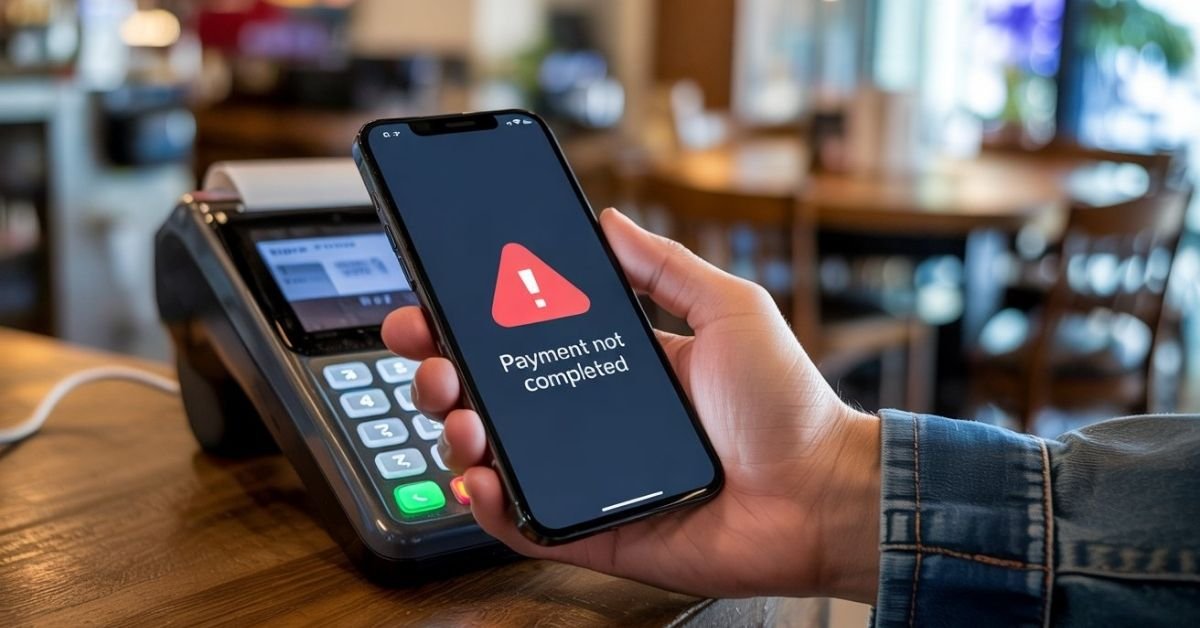
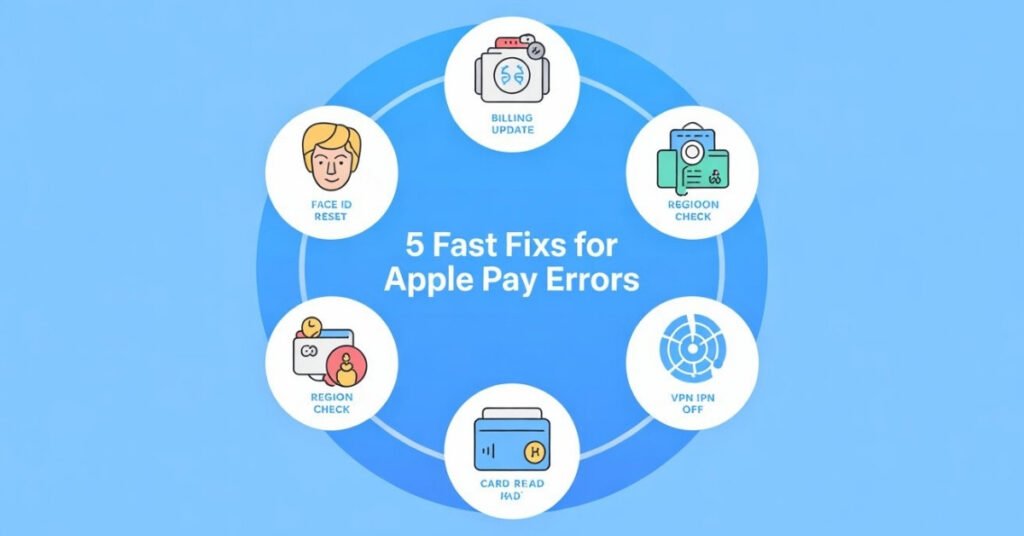
To fix the Apple Pay “Payment Not Completed” error instantly, try these verified troubleshooting steps:
- Re-authenticate Face ID/Touch ID: Go to Settings > Face ID & Passcode, toggle Wallet & Apple Pay OFF, restart your iPhone, and toggle it back ON.
- Check Settings > Wallet & Apple Pay to confirm your billing info matches your bank’s data, as any discrepancy will block the transaction.
- Double-Click Confirmation: Verify that the “Double-Click Side Button” feature is enabled in your Wallet settings to authorize payments.
- Go to Settings > General > Language & Region and confirm your iPhone’s location matches your card’s country to prevent region-based blocks.
- Remove and Re-add Card: Open the Wallet app, tap your card, select Remove Card, and then add it back to refresh the security token.
- Disable VPN: Turn off any active VPN or Ad-blocker, as these can interfere with Apple’s secure payment servers.
“If these quick steps don’t work, the issue might be a deeper synchronization error between your iCloud account and your bank’s verification system. Read our detailed fixes below.”
Step-by-Step Troubleshooting
Fix 1: The “Double-Click” Side Button Hack
Go to Settings > Wallet & Apple Pay and toggle ‘Double-Click Side Button’ ON to enable payment authorization. If it’s already on, toggle it OFF and ON again. Sometimes, the physical button registration fails to trigger the Apple Pay interface, causing the “Payment Not Completed” prompt.
Fix 2: Refresh Face ID/Touch ID Settings
Most Apple Pay errors are caused by minor biometric glitches; a quick reset is often the primary fix.
- Go to Settings > Face ID & Passcode.
- Enter your passcode and find “Wallet & Apple Pay”.
- Toggle it OFF, restart your iPhone, and then toggle it back ON.
- This forces the Secure Enclave to re-authenticate your payment tokens.
Fix 3: Update Billing & Shipping Address
If you have moved recently, your bank might decline the transaction because of an address mismatch.
- Open the Wallet App and tap your card.
- Tap the More (…) icon > Card Details.
- Tap Billing Address and ensure it exactly matches your bank statement.
Fix 4: Region Settings Check
Apple Pay is region-locked for security. If your iPhone is set to the “United States” but you are using a “UK” issued card, the payment will fail.
- Go to Settings > General > Language & Region.
- Ensure your Region matches the country where your card was issued.
Unique Solutions
Fix 5: Remove and Re-add Your Card
This is the most effective way to fix “Tokenization” errors.
- Open the Wallet App, tap your card, and select Remove Card.
- Restart your phone.
- Re-add the card manually (do not use the previous card suggestion) to refresh the digital link with your bank.
Fix 6: Disabling Apple Cash Conflict
Sometimes, Apple Pay tries to pull funds from your Apple Cash balance first. If your balance is zero or restricted, it can block your primary credit card.
- Go to Settings > Wallet & Apple Pay.
- Toggle Apple Cash to OFF and try your transaction again using your standard card.
Fix 7: Reset Network Settings
Apple Pay requires a stable, secure connection. If your network cache is corrupted, the handshake fails.
- Go to Settings > General > Transfer or Reset iPhone.
- Tap Reset > Reset Network Settings.
- Note: This will delete saved Wi-Fi passwords but won’t touch your data.
Fix 8: Sign Out & Sign Back into iCloud
If there is an account-level sync issue, signing out of your Apple ID can fix it.
- Go to Settings > [Your Name] > Sign Out.
- Restart your device and sign back in. This refreshes your “Media & Purchases” credentials.
Fix 9: Disable VPN and Third-Party Ad-Blockers
VPNs mask your IP address, which Apple’s security protocols often flag as “High Risk.”
- Go to Settings > General > VPN & Device Management.
- Ensure all VPNs are Disconnected before attempting an Apple Pay transaction.
Fix 10: Check Apple System Status
Sometimes the problem isn’t you; it’s Apple.
- Visit the official Apple System Status page.
- Look for “Apple Pay & Wallet.” If the circle is yellow or red, you simply have to wait for Apple to fix the server-side issue.
FAQS
It’s usually a Face ID glitch or an address mismatch between your bank and Wallet app.
Toggle Apple Pay OFF and ON in Face ID settings and perform a quick restart.
Check your Apple ID “Media & Purchases” for expired cards or unpaid balances.
Disable your VPN and ensure “Double-Click Side Button” is enabled in your settings.
Your bank might be flagging the mobile token as suspicious; try re-adding the card.
It means your device failed to authorize the transaction before it reached the bank.
Often due to outdated billing info or your iPhone Region not matching your card’s country.
Likely a network security block; switch to Cellular data and turn off Ad-blockers.
Conclusion
The Apple Pay “Payment Not Completed” error is rarely a sign of a broken iPhone. In 90% of cases, it’s a simple mismatch in settings or a temporary glitch in Face ID authentication. By following the steps above starting with the Face ID toggle and verifying your billing address you can resolve the issue in minutes.
If all else fails, reaching out to Apple Support or your Bank’s Fraud Department is the best final step to ensure there are no blocks on your account.

Tech Troubleshooting Expert and Lead Editor at TechCrashFix.com. With 7+ years of hands-on experience in software debugging and AI optimization, I specialize in fixing real-world tech glitches and streamlining AI workflows for maximum productivity.