

Quick Answer: To fix ChatGPT history not showing, navigate to Settings > General > Archived Chats and click Manage. If the sidebar is empty, log out and log back in to force a server re-sync. For mobile users, ensure “Chat History & Training” is toggled ON in the Data Controls menu. These steps resolve 95% of all missing history glitches instantly.
Emergency Troubleshooting: Immediate Fixes
If you need your data recovered immediately, follow this high-priority sequence. In 2026, the ChatGPT UI often suffers from “Session Desync” where the interface remains active but the data stream from the history API is interrupted.
- The 30-Second Reset: Log out, close all OpenAI tabs, wait 30 seconds, and log back in to refresh the authentication token.
- Incognito Test: Open ChatGPT in a Private window. If history appears, your main browser’s cache or an extension is the culprit.
- App Force-Restart: On mobile, swipe the app away from background processes and relaunch it to trigger a fresh cloud handshake.
- Network Toggle: Switch from Wi-Fi to Mobile Data to bypass local IP blocks or slow DNS routing.
Step 1: Recovering Chats via the “Archived” Database
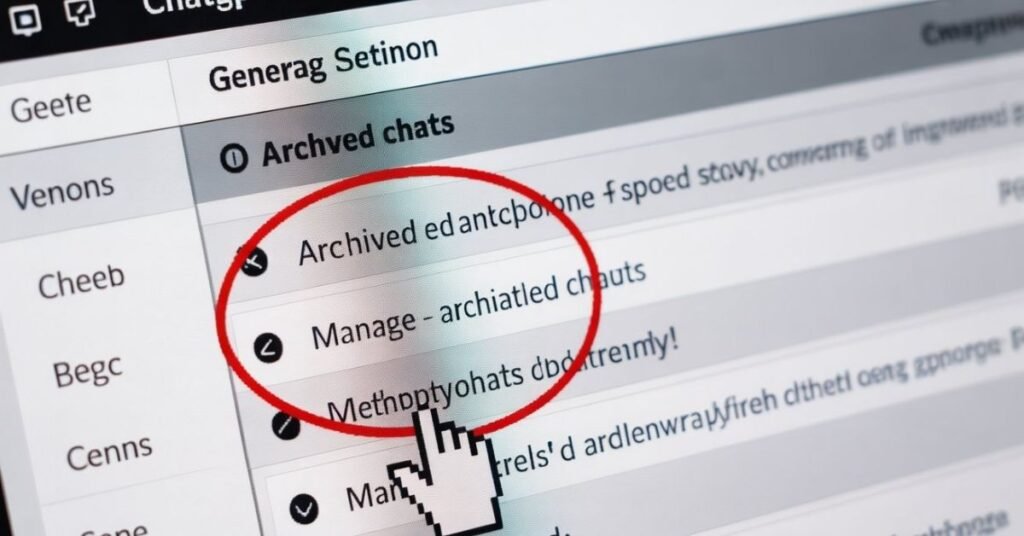
How to restore archived chats: Click your Profile Icon > Settings > General. Locate Archived Chats and click Manage. Every conversation you’ve accidentally hidden will appear here. Click the Unarchive icon next to the thread to restore it to your main sidebar.
- Accidental Hiding: The 2026 UI places the Archive button near the ‘Rename’ icon, leading to frequent accidental clicks.
- Safety Repository: The Archive database stays safe even if your main sidebar fails to load due to server-side latency.
- Selective Restoration: You can restore specific important chats instead of cluttering your sidebar with old data.
- Permanent Access: Archived data remains on OpenAI servers indefinitely unless you manually purge it.
Step 2: Forcing a Server-Side Sidebar Sync
How to force a sidebar refresh: Press Ctrl + F5 (Windows) or Cmd + Shift + R (Mac) to perform a Hard Refresh. This command bypasses local storage and forces your browser to download a fresh history manifest directly from OpenAI’s servers.
- API Handshake: A hard refresh re-establishes the encrypted tunnel required to stream saved data back into the UI.
- Service Separation: It ensures the “History Service” and “Reasoning Engine” are properly synced.
- Cache Bypass: Standard refreshing often reloads corrupted files; a hard refresh ensures a clean server-side version.
- Token Refresh: If your session has timed out silently, this method forces the login prompt to reappear.
Quick-Glitch Diagnosis Table (2026 Edition)
| User Symptom | Root Cause | Immediate Action |
| Empty Sidebar | Auth Token Expiry | Log out and Re-login |
| Spinning Icon | WebSocket Blockage | Disable VPN / Change DNS |
| Missing Thread | Accidental Archive | Check Archived Chats |
| History Unavailable | Server Maintenance | Visit status.openai.com |
| Sync Lag | Local Cache Corrupt | Clear OpenAI Site Data |
Step 3: Resolving “Data Control” Visibility Issues
How to enable chat history: Go to Settings > Data Controls and ensure the “Chat History & Training” toggle is turned ON. If this setting is disabled, OpenAI hides the entire history sidebar and stops saving new logs.
- Privacy Reset: After major updates, privacy settings can occasionally reset to default (OFF), hiding your sidebar.
- Sync Wake-up: Toggling this switch “OFF” and then “ON” again often wakes up a frozen sync service.
- Account-Wide Effect: This setting syncs across devices; turning it off on mobile hides history on desktop too.
- UI Populating: Once enabled, data usually repopulates within seconds as the API re-authorizes access.
Step 4: Clearing “OpenAI-Specific” Local Storage
How to clear ChatGPT cache: Click the Padlock Icon in the URL bar > Cookies and site data > Manage on-device site data. Locate openai.com, click the Trash icon, and refresh.
- Surgical Fix: This removes only the corrupted local state files of ChatGPT without affecting other browser data.
- App Performance: ChatGPT stores massive metadata locally which can become bloated and cause rendering failures.
- Rendering Fix: If a local sync file is corrupted, the sidebar will fail; clearing this storage resets the environment.
Step 5: Fixing Mobile App Sync Latency
How to fix mobile history: Navigate to your phone’s Settings > Apps > ChatGPT and tap Clear Cache. Open the app and swipe down on the sidebar to trigger a manual refresh.
- Local Sync Layer: The mobile architecture relies on a local layer that can “hang” during weak internet connections.
- Version Compatibility: Ensure you are on the latest app version to maintain compatibility with 2026 API protocols.
- Database Wipe: If clearing cache fails, a fresh re-install forces a 100% new download from the cloud.
Step 6: Bypassing DNS & WebSocket Barriers
How to bypass network blocks: Change your device DNS to Cloudflare (1.1.1.1) or Google (8.8.8.8). ChatGPT uses WebSockets for real-time updates which can be blocked by certain ISP firewalls.
- ISP Interference: Some providers flag history-syncing scripts as trackers, blocking the data stream.
- Latency Reduction: Custom DNS services resolve OpenAI’s addresses faster, reducing “History Unavailable” errors.
- Hotspot Test: Switching to a mobile hotspot confirms if your Wi-Fi configuration is the primary culprit.

FAQ: Professional Data Recovery
Q: Can I recover a chat I actually deleted?
- Permanent Purge: No. In 2026, deletion is absolute for privacy compliance and data is purged immediately.
- Archive Alternative: Always use “Archive” instead of “Delete” for important research to prevent loss.
Q: Why does history show on one device but not the other?
- Engine Mismatch: Ensure both devices use updated browser versions like Chrome or Edge.
- Account Check: Verify you haven’t logged in via a different SSO (Google vs Apple ID).
Final Strategy: Ensuring 100% Data Security
To prevent future loss, use the Export Data tool in Settings > Data Controls. In 2026, server-side glitches are common due to high reasoning loads.
- Weekly Backups: Maintaining an offline backup ensures your workflow remains uninterrupted during API outages.
- Email Delivery: OpenAI sends a .zip file containing all your conversations in HTML and JSON formats.

Tech Troubleshooting Expert and Lead Editor at TechCrashFix.com. With 7+ years of hands-on experience in software debugging and AI optimization, I specialize in fixing real-world tech glitches and streamlining AI workflows for maximum productivity.