

If you have ever been 90% through a long coding script or a detailed essay only to be hit with a “Network Error,” you know how frustrating it is. This error usually triggers when the connection between your device and OpenAI’s server stays open for too long, causing a timeout during a heavy data stream. While it looks like an internet issue, it is often a matter of how the data is being requested and processed.Fortunately, by adjusting your workflow and optimizing your device settings, you can eliminate these interruptions for good.
Fixing this error is as urgent as trying to stop dog barking at night you need a solution that works immediately so you can get back to your flow.
How do I stop ChatGPT from giving a network error?
To fix ChatGPT network errors on long responses, break your prompts into smaller sections, disable your VPN, and avoid switching browser tabs while the AI is generating. For mobile users, ensuring the app is updated and resolving issues like ChatGPT voice mode not working on Android can significantly stabilize the connection.
Quick Fix Checklist: ChatGPT Network Errors
| Scenario | Immediate Action | Why it works? |
| Generating 1000+ Words | Use Split-Prompting | Prevents server “Body Stream” timeout. |
| Android App Freezing | Clear Cache & Check Permissions | Fixes session sync & background kills. |
| Stuck on “Thinking…” | Disable VPN / Refresh Tab | Stabilizes the IP handshake with OpenAI. |
| Mid-Sentence Cutoff | Type “Continue” | Resumes the stream on a fresh connection. |
| Voice Mode Glitches | Fix Voice Mode not working on Android | Resolves underlying app-level connectivity. |
Understanding the “Body Stream” Error: Why ChatGPT
Disconnects
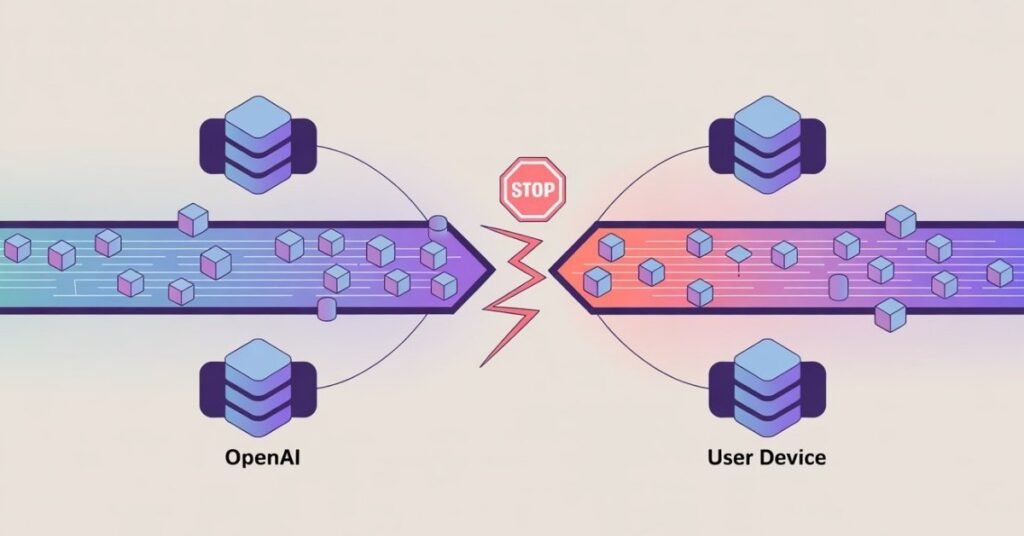
The ChatGPT “Network Error” is technically a Body Stream Error. Unlike a standard internet drop, this happens because the connection between your browser and the server stays open for too long. Since ChatGPT “streams” text word-by-word, any micro-interruption causes the server to close the connection to save resources.
Common Triggers for This Error:
- Buffer Timeouts: If the AI takes too long to process a complex request, your browser may assume the server has stopped responding.
- Large Output Requests: Attempting to generate over 1,000 words in one go puts extreme pressure on the data stream.
- Network Instability: High latency or micro-drops from Wi-Fi and VPNs can break the handshake between your device and the AI.
- Android App Instability: On mobile, background process limits can cause the app to hang. This is often linked to session sync issues, similar to what causes ChatGPT voice mode not working on Android, leading to a failed text stream.
5 Proven Solutions to Fix ChatGPT Network Drops
Fixing “Network Errors” requires a mix of smart prompting and technical tweaks. Use these steps to stabilize your long AI generations:

- The “Split-Prompting” Strategy: Don’t ask for 2,000 words at once. Ask for an outline first, then prompt for each section individually. This keeps the “Body Stream” short and safe from timeouts.
- Keep the Tab Active: Browser “Memory Saver” modes often hibernate background tabs. Keep the ChatGPT window open and focused until the response is fully generated to avoid connection throttling.
- Disable VPNs & Ad-Blockers: VPNs increase latency and packet loss. Disable them or whitelist chat.openai.com to prevent security tools from interrupting the data stream.
- Refresh Before Long Prompts: Session tokens expire over time. Always refresh your page before starting a complex task to ensure your authentication is fresh and stable.
- Prioritize Connection Stability: Micro-drops in Wi-Fi kill long streams. Use a wired Ethernet connection or a stable 5G hotspot; a consistent “Ping” is more vital than high download speeds.
Special Fixes for Android App Users
Many users prefer the convenience of the mobile app, but the Android environment can be more prone to session timeouts than a desktop browser. If you find your text generation cutting off mid-way, it is likely due to an app-level sync error.
Troubleshooting ChatGPT Voice Mode Not Working on Android
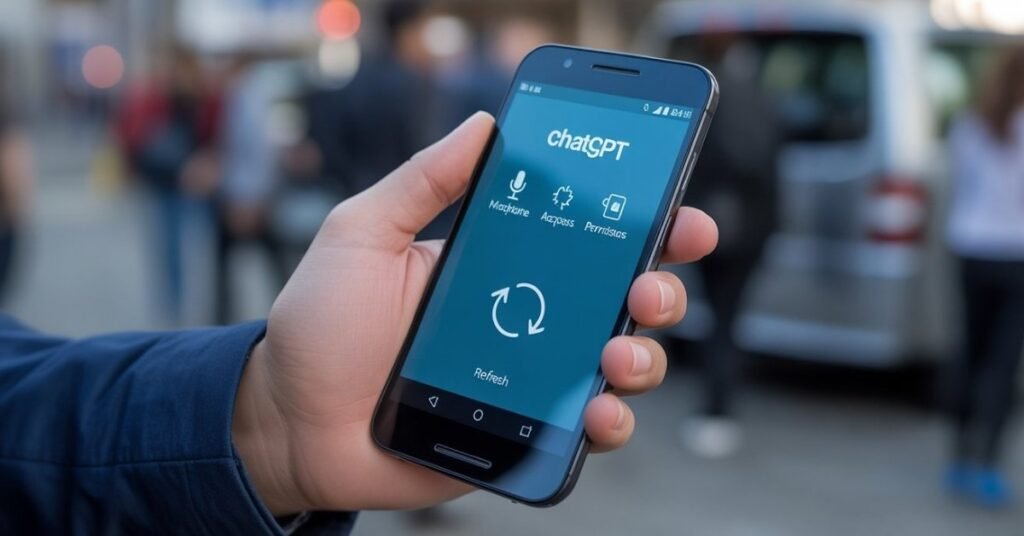
Interestingly, network errors in text mode are often preceded by issues with other features. If you are experiencing ChatGPT voice mode not working on Android, it usually points to a corrupted cache or a failed handshake with OpenAI’s servers.
To resolve these interconnected issues:
- Clear the App Cache: Go to Settings > Apps > ChatGPT > Storage and tap Clear Cache. This removes temporary files that might be clogging the data stream.
- Check Microphone & Background Permissions: Ensure ChatGPT has “Unrestricted” battery usage and full microphone access. If the system kills the app’s background process to save power, your long-form response will instantly hit a “Network Error.”
- Reset the Session: If both voice and text modes are glitching, log out of the app, restart your phone, and log back in. This forces a fresh connection to the API.
Best Practices for Generating 2,000+ Word Content
If your goal is to generate massive amounts of text without ever seeing a red error box, you need to change your “Generation Workflow.” Professional AI prompt engineers rarely rely on a single long prompt.
- The “Continue” Command: If ChatGPT stops because of a length limit (not a network error), simply type “Continue” or “Keep going.” This resumes the stream in a new, fresh connection.
- The API Playground Alternative: If the web interface is consistently failing you, consider using the OpenAI API Playground. It is designed for developers and is much more stable for heavy, high-token tasks.
- Prompt for “Parts”: Instead of saying “Write a long book,” say “Write the first 500 words of the introduction.” This ensures the server never hits its timeout threshold.
FAQS:
Answer: This is usually a “Body Stream Error.” It happens when the connection between your device and OpenAI’s server stays open for too long during a large data transfer, causing a timeout. Unstable Wi-Fi or active VPNs often trigger this disconnect.
Answer: The best way to prevent timeouts is “Split-Prompting.” Instead of asking for a massive article at once, ask for it section by section. Also, ensure your browser tab remains active and focused during the generation
Answer: If ChatGPT voice mode is not working on Android, it’s likely due to a corrupted app cache or restricted background permissions. Clear the app cache in settings and ensure the app has “Unrestricted” battery usage and microphone access.
Answer: Yes, VPNs can increase latency and cause packet loss. If you frequently see network errors, try disabling your VPN or whitelisting OpenAI’s domain to ensure a more direct and stable connection.
Answer: If the generation stops without a red error box, simply type “Continue” or “Keep going.” If a red “Network Error” appears, you will need to refresh the page and use a shorter prompt for that section.
Conclusion: Maintaining a Stable AI Workflow
Fixing the ChatGPT “Network Error“ is about managing the balance between request size and connection stability. By using the split-prompting technique and ensuring your device whether desktop or mobile is optimized, you can eliminate interruptions.
Remember, if you are also facing issues like ChatGPT voice mode not working on Android, these are often symptoms of the same underlying session instability. Keep your app updated, your cache clear, and your prompts concise for the best AI experience.

Tech Troubleshooting Expert and Lead Editor at TechCrashFix.com. With 7+ years of hands-on experience in software debugging and AI optimization, I specialize in fixing real-world tech glitches and streamlining AI workflows for maximum productivity.