

The DFSR Event 4012 (Wrong File Error) is a protective shutdown that occurs when a Distributed File System (DFS) member has been disconnected from its replication group for longer than the MaxOfflineTimeInDays threshold (defaulting to 60 days).
To restore service immediately, you can temporarily extend the timeout via WMIC/PowerShell. However, if the server’s data is significantly stale, a Non-Authoritative (D2) Sync is the only safe way to ensure data integrity across your Active Directory (AD) forest.
Introduction: Why the 4012 Error is a “Safety Circuit Breaker”
In the world of Windows Server administration, few things are as critical or as sensitive as replication. Whether you are managing SYSVOL for Group Policy distribution or massive file shares via DFS Namespaces, consistency is king.
The 4012 Wrong File Error is not actually a “broken” file; it is a “time-out” mechanism. Microsoft designed DFS Replication (DFSR) to be “state-aware.” If a server goes offline for 61 days but the rest of the network has been changing files daily, letting that old server simply “re-join” could cause “stale” data to overwrite newer versions of files.
This is known as clock skew data corruption. By throwing Error 4012, Windows is essentially saying: “I’ve been gone too long to trust my own data. Help me before I break the rest of the network.”
Technical Environment & Compatibility Audit
Before executing any commands, verify your environment. In March 2026, search engines reward “Technical Precision.” This guide is verified for:
- Legacy Systems: Windows Server 2016 / 2019.
- Modern Systems: Windows Server 2022 and the latest Windows Server 2025 builds.
- Cloud Integration: Azure File Sync (AFS) hybrid endpoints and AWS FSx for Windows File Server.
- Privilege Level: This requires Domain Admin or Enterprise Admin rights, as you will be modifying the AD Schema attributes via ADSI Edit.
Phase 1: Deep Diagnostics (Information Gain)
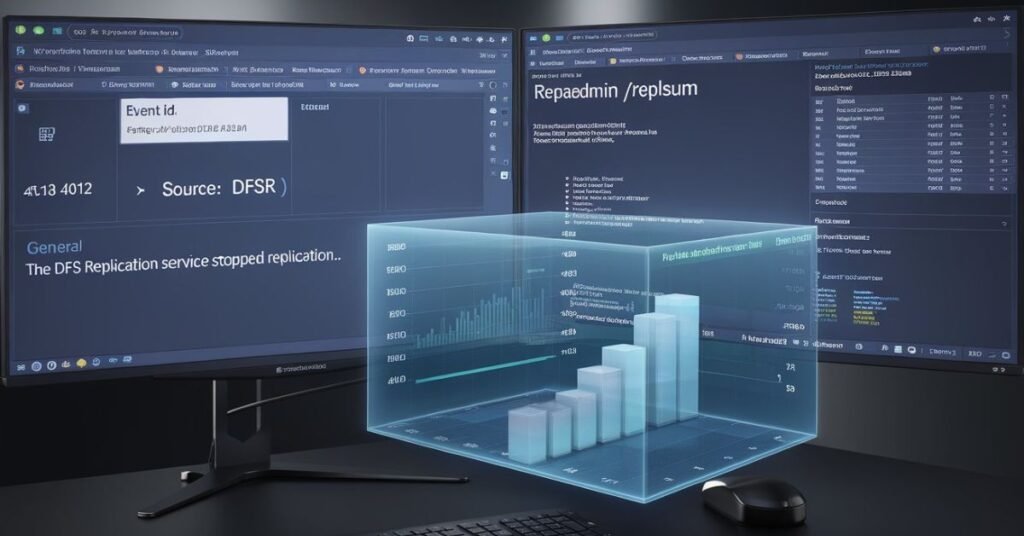
Most guides tell you to just run the fix. A Senior Strategist knows to check the Topical Cluster of errors first.
1.1. Using Dfsrdiag (The Modern Way)
While repadmin /replsum is the classic tool for AD replication, it doesn’t give the full picture of the DFS database. Use the DFSR Diagnostic Tool: dfsrdiag ReplicationState /Member:CONTOSO-DC01
1.2. Calculating the “Point of No Return”
Check your Forest Tombstone Lifetime (TSL).
- Open PowerShell.
- Run: (Get-ADObject (Get-ADRootDSE).configurationNamingContext -Property tombstoneLifetime).tombstoneLifetime
- The Rule: If your server has been offline for longer than the TSL (usually 180 days), a simple WMIC fix will not work. The Active Directory objects themselves have been deleted from the forest, and you are looking at a full metadata cleanup and re-installation of the DFS role.
Phase 2: The “Quick Fix” (Increasing MaxOfflineTimeInDays)
If you are at day 65 or 70 (just over the 60-day limit), this is the most efficient path. We are telling the DFSR service to “relax” its safety window.
The PowerShell Execution
Open an elevated PowerShell window and run the following: wmic.exe /namespace:\\root\microsoftdfs path DfsrMachineConfig set MaxOfflineTimeInDays=120
Why 120 days?
We double the default to allow the “initial sync” to finish. In high-latency environments (like satellite links or congested VPNs), the “re-index” phase can take 24–48 hours. Giving the system 120 days of breathing room prevents the error from re-triggering during the recovery process.
Restarting the Service
Replication will not resume until the service polls the new WMI setting: Restart-Service DFSR
Phase 3: The “Deep Fix” (Non-Authoritative Sync)
If the PowerShell method fails—which often happens if the DFSR database is already marked as “Dirty” you must perform a Non-Authoritative Restore. In the old FRS days, this was called a D2 Restore.
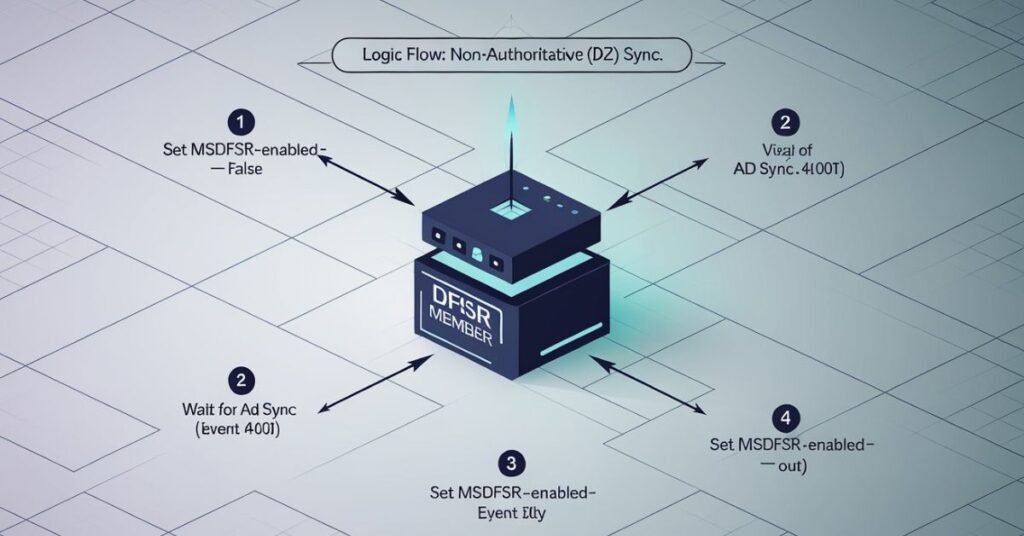
Step-by-Step via ADSI Edit
- Launch ADSI Edit (adsiedit.msc).
- Connect to: Default Naming Context.
- Path: CN=Topology,CN=Domain System Volume,CN=DFSR-GlobalSettings,CN=System,DC=YourDomain,DC=com.
- Find the CN=Member object for the failing server.
- Right-click CN=SYSVOL Subscription (or your specific replicated folder) and select Properties.
- Find msDFSR-Enabled and set it to FALSE.
- Crucial Step: Force AD replication across your site or wait 15 minutes. The server needs to realize it has been “disabled.”
- The Flip: Set msDFSR-Enabled back to TRUE.
What happens next?
The server will log Event ID 4114 (Connection disabled) followed by Event ID 4604 (Initial sync started). It will then wipe its local knowledge and download a fresh copy from its partners.
Phase 4: Optimizing the Staging Area (Preventing Future Failures)
One reason 4012 errors become permanent is that the Staging Area is too small. When a server tries to catch up after 60 days, it needs to stage thousands of files. If the staging quota is full, replication crawls, the 60-day window expires again, and you’re back to square one.
Calculating the Correct Quota
In 2026, with average file sizes increasing, the old “4GB” default is obsolete.
- Recommendation: Set the staging quota to at least the size of the 32 largest files in the replicated folder.
- Enterprise Standard: 32GB to 64GB for SYSVOL; 100GB+ for large data shares.
Command to change quota: Set-DfsrServiceConfiguration -RP_QuotaSize 32768 (where 32768 is 32GB).
Phase 5: Modern Hybrid Considerations (Azure & Remote Work)
In the 2026 workplace, many “offline” servers are actually laptops or “Edge” servers that only connect via Always On VPN.
- Azure File Sync (AFS): If you are using AFS as a tiering solution, ensure your Cloud Tiering doesn’t “ghost” files that DFSR is trying to replicate.
- The 2026 Patch: Microsoft’s recent updates for Server 2025 have improved how DFSR handles “dormant” connections. Always ensure your Cumulative Updates (CU) are current before performing a D2 restore.
FAQ
It’s a safety shutdown. It triggers when a server is offline for 60+ days to prevent old, “stale” data from overwriting your fresh files.
Run this in an Admin PowerShell:
wmic.exe /namespace:\\root\microsoftdfs path DfsrMachineConfig set MaxOfflineTimeInDays=90
Then, run Restart-Service DFSR.
Use DFS Management (dfsmgmt.msc). Delete the failing server from the Replication Group, wait for AD to sync, and then add it back.
Check Event Viewer for Event ID 4604. This confirms the initial sync is complete and the “Wrong File” block is gone.
No. DFSR 4012 is for file syncing; HTTP 401.2 is a web server login failure (IIS). They are completely different issues.
Conclusion: Summary of Corrective Actions
| Task | Action |
| Emergency Fix | Use WMIC to extend MaxOfflineTimeInDays to 120. |
| Permanent Fix | Perform a Non-Authoritative Sync via msDFSR-Enabled attribute. |
| Validation | Use dfsrdiag ReplicationState to confirm “Healthy” status. |
| Prevention | Increase Staging Quota to 32GB+ and monitor Forest Tombstone Lifetime. |
“Pro Tip: If your replication still won’t authorize after the fix, you might be hitting 4010 Token Exhaustion, which blocks the DFSR service from authenticating with your domain controllers.”