
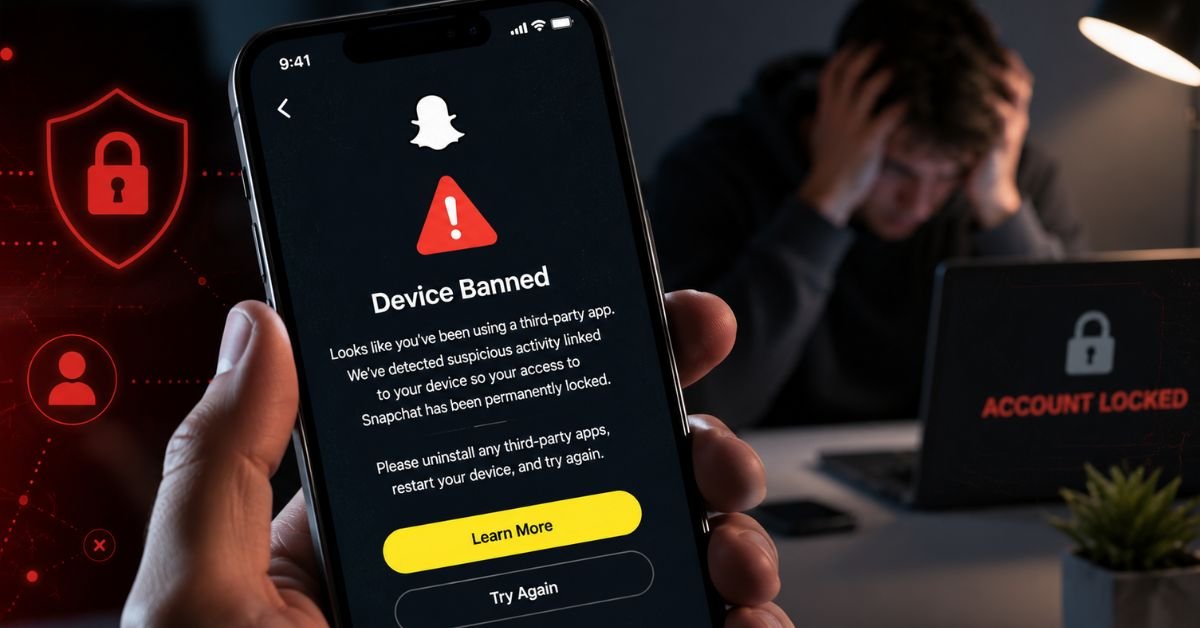
Snapchat banned your device, not just your account. That means your phone’s hardware is blocked. SS06 and SS18 are the most serious bans. SS07 happens when you link too many accounts to one phone. Start with Fix 1 and work down the list.
What Does the Snapchat Device Banned Error Actually Mean?
Most people think it’s an account problem. It’s not. The Snapchat device banned error locks on your phone’s hardware, your IMEI, MAC address, and device sensors. Delete the app and reinstall it. Still banned. Create a new account. Banned in seconds. Switch to mobile data. Still banned. That’s a hardware ban, not an account lock.
Here’s how to tell which error code you have and what it means:
| Error Code | What It Means | Severity | Reversible? |
| SS06 | Device banned for abuse or serious ToS violation | Highest | Rarely needs appeal or workaround |
| SS18 | Device banned similar to SS06, less severe trigger | High | Rarely same process as SS06 |
| SS07 | Too many accounts linked to one device | Medium | Sometimes appeal has better odds |
Quick test: Try logging into your account from a friend’s phone. If it works → device ban on your hardware. If it still fails → account ban, not a device issue.
Why Did Snapchat Ban Your Device?
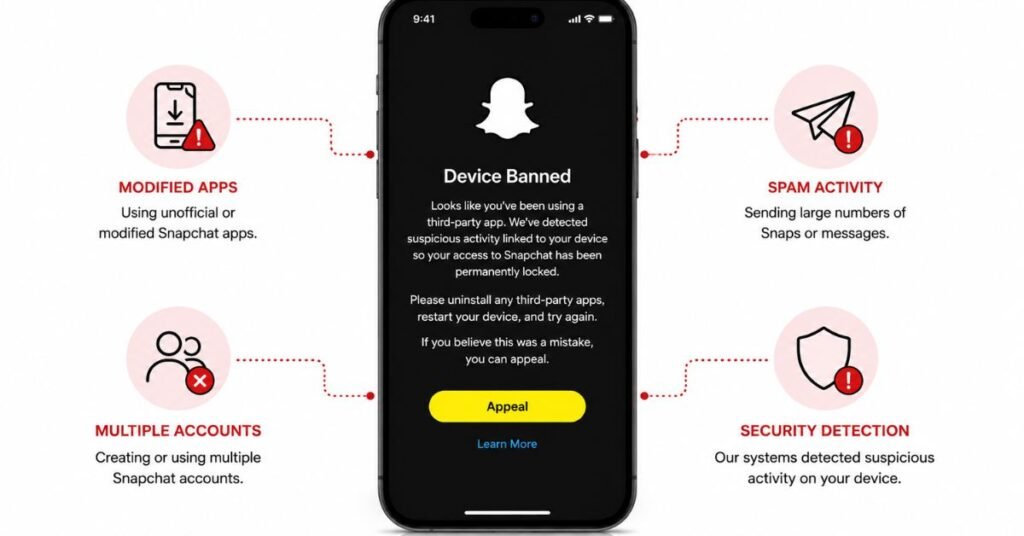
Snapchat tracks your phone’s unique ID across sessions, accounts, and reinstalls. Here’s what triggers a device ban:
- Using modded Snapchat apps (Snapchat++, third-party plugins, tweaked APKs)
- Getting multiple accounts banned from the same phone
- Spamming, mass-adding, or bot-like activity
- Buying a secondhand phone that a previous owner got banned
- A false positive from Snapchat’s security system
If you bought a used phone and got an SS06, that last point applies to you. Submit an appeal your chances are better than most.
Temporary vs. Permanent Device Ban: How to Tell
| Feature | Temporary Flag | Permanent Device Ban (SS06/SS18) |
| Primary cause | Minor ToS breach or login anomaly | Modified apps, hardware flagging, repeated bans |
| Duration | 24–72 hours | Indefinite does not expire on its own |
| New account on same device? | May work after waiting period | No hardware is blacklisted |
| Appeal success rate | High (often automatic) | Low requires manual review |
| Best first step | Wait 72 hours, don’t log in | Submit official in-app appeal |
Fix 1: Wait 72 Hours Without Logging In
This works for temporary flags only, not SS06. Every failed login resets the timer, so stop trying to log in.
- Close Snapchat completely and log out if possible.
- Do not attempt to log in for a full 72 hours.
- Do not try creating a new account on the same device during this period.
- After 72 hours, open Snapchat and attempt login normally.
If it works, you were dealing with a temporary security flag. If the SS06 error returns immediately, move to Fix 2.
Fix 2: Submit an Official In-App Appeal (Do This Before Anything Else)
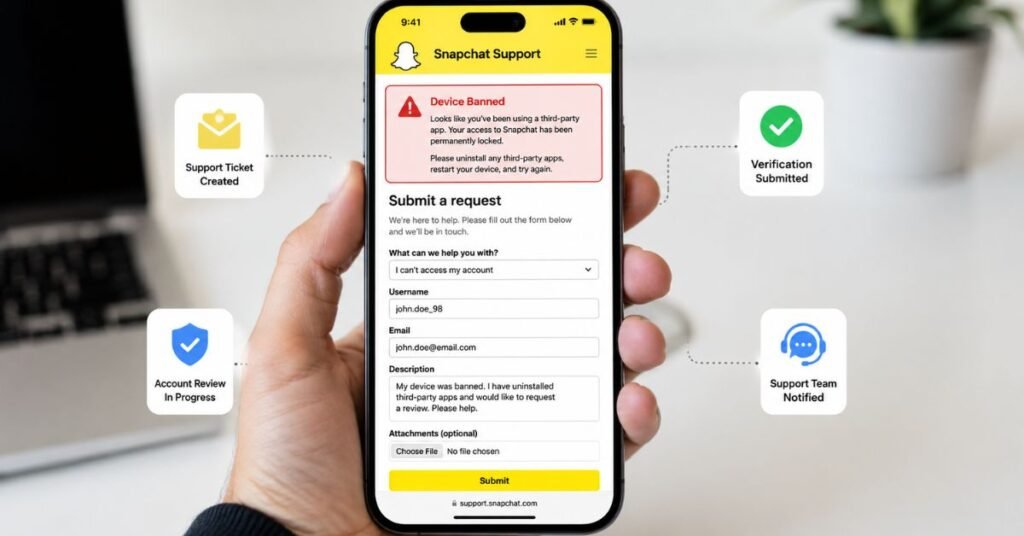
Most people skip this step. Don’t. The in-app appeal is the only legitimate way to fight a device ban. No third-party tool can access Snapchat’s servers.
How to appeal:
- Open the Snapchat app on the banned device (or visit accounts.snapchat.com).
- When the SS06 error appears, look for an “Appeal Decision” option; newer versions of the app surface this directly on the error screen.
- If it doesn’t appear in-app, go to help.snapchat.com → select “My account is locked” → “I think my device was banned by mistake.”
- Fill in your details accurately: device model, OS version, exact error code (SS06/SS18/SS07), and the date the ban appeared.
What to include in your appeal message to improve your chances:
- A clear explanation of why the ban was a mistake
- Proof of purchase if you bought the phone secondhand
- Your exact device model and Snapchat version
- A statement that you have not used modified apps
Why appeals often fail: Snapchat’s automated system flags traces of third-party modifications, multiple banned accounts, or prior bot-like behavior. If any of these apply, a manual human review is unlikely to reverse the decision. SS07 bans have meaningfully better appeal success rates than SS06 or SS18.
Fix 3: Android Use Dual Messenger or an App Cloner
App cloning tools create a virtual instance of Snapchat that runs with a separate virtual device ID separate from your phone’s actual hardware fingerprint.
- Go to Settings → Advanced Features → Dual Messenger (available on Samsung devices natively).
- Toggle on Snapchat to create a cloned version.
- Alternatively, use a reputable parallel space app from the Play Store.
- Open the cloned Snapchat, create a fresh account, and log in.
The cloned app runs on a virtual hardware ID, which can get around the SS06 block. It doesn’t always work. Snapchat keeps improving its detection but it’s the most common Android workaround in 2026.
Fix 4: iPhone Factory Reset with a New Apple ID
iOS has no native app cloning option. A factory reset combined with a new Apple ID is the most reliable path but back everything up first.
- Back up everything important (photos, contacts, notes) to iCloud or your computer. Do not restore app data or Snapchat settings.
- Go to Settings → General → Transfer or Reset iPhone → Erase All Content and Settings.
- Complete the setup process using a new Apple ID not your existing one.
- Download Snapchat fresh from the App Store.
- Create a new Snapchat account. Do not log into the old account that triggered the ban.
Why this works: A factory reset clears certain device IDs on iOS. Just deleting Snapchat doesn’t mean that Snapchat’s system remembers your phone even after a reinstall.
Fix 5: Change Your Network (If Your IP Is Also Flagged)
A device ban and a network block can both hit you at the same time. Fix the network separately:
- Switch from Wi-Fi to mobile data (this gives you a different IP immediately).
- If on mobile data, try a different Wi-Fi network not your home network.
- Enable Airplane Mode for 30 seconds, then disable it to force a new IP assignment from your carrier.
- As a last resort, use a reputable paid VPN before your first login attempt on a fresh account.
A VPN alone does not fix a hardware-level SS06 ban. It changes your IP address, not your device’s hardware fingerprint. Use it alongside another fix, not as a standalone solution.
Fix 6: Update Snapchat and Your Device OS
An outdated app or old OS can trigger false bans. Update both before trying anything else.
- Open the App Store (iOS) or Play Store (Android).
- Search for Snapchat and install any pending updates.
- Go to your device settings and install any available OS updates.
- Restart your device after updating.
- Attempt login again.
This won’t fix a real SS06 ban but it can clear a false positive caused by an outdated version.
Fix 7: Use a Different Device
The ban is on the hardware. A different device sidesteps it entirely.
- Get access to a different phone, a friend’s, a family member’s, or a new/refurbished device.
- Download Snapchat fresh on the new device.
- Log in with your existing Snapchat account only if the account itself is not banned. (Use the friend’s phone test from earlier to verify this.)
- If the account is also banned, create a new one on the new device and start fresh.
Going forward: avoid modified apps, don’t run multiple accounts from one device, and don’t use automation tools. The ban followed the hardware to keep the new device clean.
Warning: Avoid “Snapchat Unban Tools” They Are Scams
You’ll find tons of “Snapchat unban tools” online. They are all scams. No third-party tool can access Snapchat’s servers or remove a hardware ban. Here’s what they actually do:
- Steal your login details
- Install malware on your phone
- Take your money and do nothing
The in-app appeal is the only real option. If you already used one of these tools, change your Snapchat password and email password right now.
Frequently Asked Questions
How long does a Snapchat device ban last?
SS06 and SS18 bans are permanent; they don’t expire. Temporary flags lift after 24–72 hours if you stop logging in. SS07 is sometimes reversible through an appeal.
Can I fix the Snapchat device banned error without factory resetting my phone?
Yes, on Android. Use Dual Messenger or an app cloner no reset needed. On iPhone, a factory reset with a new Apple ID is your best option without switching phones.
Will a VPN unban my device on Snapchat?
No. A VPN only changes your IP address. Snapchat bans your hardware ID, not your network. Use a VPN alongside another fix not on its own.
I bought a secondhand phone and got an SS06. What do I do?
Submit an in-app appeal. Tell Snapchat you bought the phone used and attach proof of purchase. These appeals succeed more often than bans caused by actual violations.
What’s the difference between SS06, SS07, and SS18?
SS06 and SS18 both ban your hardware SS06 is the most severe. SS07 means too many accounts were linked to your device. SS07 is easier to appeal to than SS06 or SS18.
Appeal first. If that fails, try the Android cloner or iPhone reset. Use a different device as a last resort. And skip the unban tools they don’t work.