
Nano Banana Pro not working can feel confusing, especially when you’re trying to create a clean AI image, edit a photo, or use Gemini’s advanced image tools.
One minute everything looks fine. The next minute Gemini gives a normal text reply, the image button disappears, or the Redo with Pro option doesn’t show.
The good news is simple: Nano Banana Pro is usually not “broken.”
In most cases, the issue comes from quota limits, account access, app routing, browser cache, subscription level, or the way Gemini handles image generation.
Google describes Nano Banana Pro as its Gemini 3 Pro Image model for advanced image generation and editing. It is built for stronger text rendering, visual reasoning, and higher-quality design control.
This guide explains the real reasons Nano Banana Pro may not work and gives you practical fixes you can try before wasting time changing prompts again and again.
What Is Nano Banana Pro?
Nano Banana Pro is Google’s advanced AI image generation and editing model. It is built on Gemini 3 Pro Image and is designed for more professional visual tasks.
You can use it for product mockups, posters, diagrams, infographics, branded graphics, and text-heavy visuals.
That makes it different from basic AI image tools. Nano Banana Pro is not just for fun edits.
It is useful when you need better layout control, clearer typography, stronger image quality, and more reliable results from detailed prompts.
Why Is Nano Banana Pro Not Working?
Nano Banana Pro may stop working for several reasons. Sometimes the issue is your Gemini account. Sometimes it is your daily limit.
In some cases, Gemini starts with Nano Banana 2 first, and Pro only appears later through the Redo with Pro option.
So if Nano Banana Pro is not showing at the start, that does not always mean it is unavailable.
It may simply mean you need to generate the first image before the Pro regeneration option appears.
Quick Fix Checklist
Before going deep, try these quick fixes first:
- Open a new Gemini chat.
- Select Create images from the tools menu.
- Generate a simple test image.
- Click the three-dot menu on the image.
- Look for Redo with Pro.
- Check that you are using the correct Google account.
- Make sure your subscription is active.
- Clear browser cache or try Incognito mode.
- Update the Gemini app.
- Try a different browser or device.
- Wait if you recently generated many images.
These steps solve many common Nano Banana Pro not working issues without any technical setup.
Fix 1: Use the Correct Gemini Image Route
A common mistake is asking Gemini, “Use Nano Banana Pro,” inside a normal chat box.
Gemini may still answer in text because you are not using the image creation route.
Instead, open Gemini and choose the image generation tool. Look for Create images from the tools menu.
From there, you can add a prompt or upload an image to edit.
Try this prompt:
“Create an image of a modern workspace with a laptop, coffee cup, soft morning light, realistic style, 16:9 aspect ratio.”
Keep the first test simple.
If that works, your problem was likely the tool route, not Nano Banana Pro itself.
Fix 2: Check the “Redo With Pro” Option
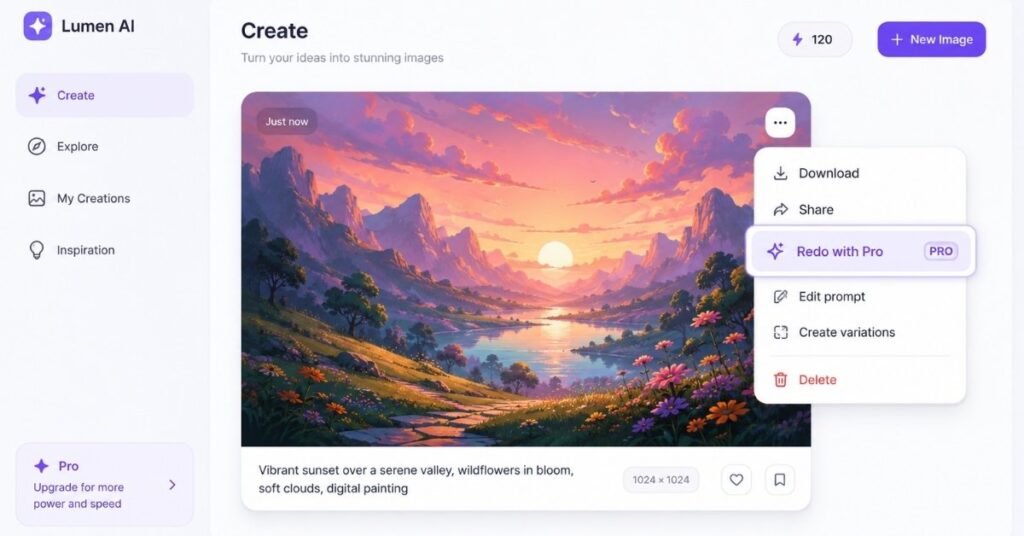
If Nano Banana Pro is not showing, check whether you have already created an image first.
In Gemini Apps, Pro may appear as a regeneration option rather than the first image generation mode.
This means the proper flow is simple:
- Generate an image first.
- Open the image menu.
- Select Redo with Pro.
- Wait for Gemini to regenerate the image with the Pro model.
If you are looking for Nano Banana Pro before creating the first image, you may think it is missing.
In reality, it may be hidden behind the regeneration menu.
Fix 3: Check Your Gemini Usage Limits
Nano Banana Pro may not work if you have reached your usage limit.
Gemini uses compute-based limits, and those limits can depend on the model, feature, prompt complexity, and chat length.
This is why Nano Banana Pro may work in the morning but stop later in the day.
It can also explain why small prompts work but complex image edits fail.
Try this:
- Wait a few hours.
- Start a new chat.
- Use a short image prompt.
- Avoid uploading several images at once.
- Test again before assuming the tool is broken.
If the basic prompt works later, your issue was likely a temporary usage limit.
Fix 4: Confirm Your Subscription Plan
Nano Banana Pro access can depend on your Google AI plan and product route.
Higher plans usually offer better access limits and more advanced AI features.
Make sure you are logged in with the same Google account that has the paid plan.
Many users accidentally use a second Gmail, school account, work account, or browser profile.
Check these things:
- Are you logged into the paid Google account?
- Is your subscription still active?
- Are you using Gemini on the correct profile?
- Are you using a work or school account with restrictions?
- Does the feature appear on mobile but not desktop?
If Nano Banana Pro works on one account but not another, your problem is account access.
It does not mean the model itself is broken.
Fix 5: Clear Cache or Use Incognito Mode
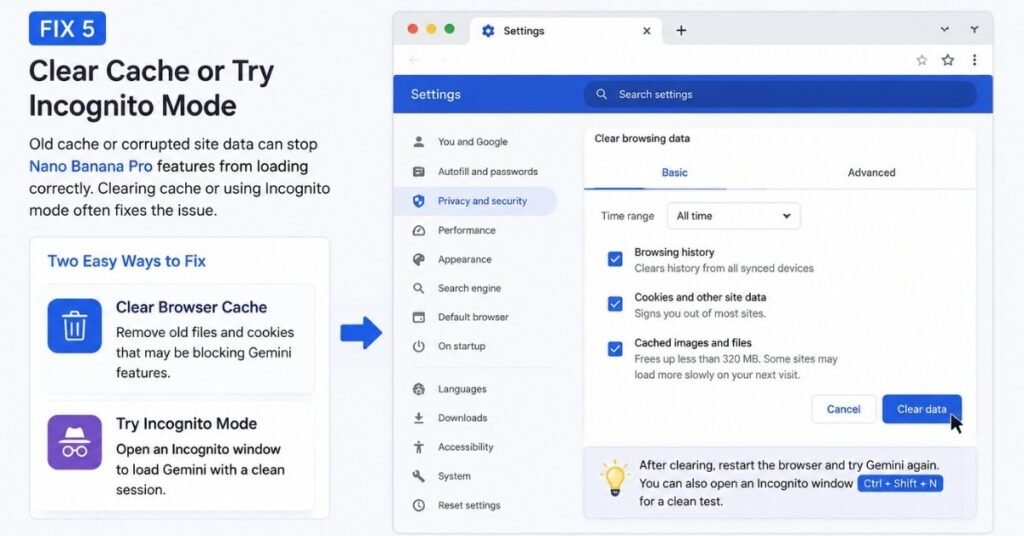
Browser cache can create strange Gemini issues.
Buttons may disappear, chats may freeze, and image tools may not load correctly.
Open Gemini in Incognito mode and test a fresh image prompt.
If Nano Banana Pro works there, clear your browser cache and site data for Gemini.
You can also try:
- Chrome
- Edge
- Safari
- Firefox
- Gemini mobile app
Testing another browser is one of the fastest ways to separate a browser issue from an account issue.
Fix 6: Update the Gemini App
If Nano Banana Pro is not working on your phone, update the Gemini app or Google app.
Old versions may not show the latest image options correctly.
After updating, close the app completely and reopen it.
Then start a new chat and test a simple image prompt.
Do not test inside an old thread.
Older chats can sometimes keep the same broken state.
If the app still fails, try Gemini in your mobile browser.
If the browser works but the app does not, the app installation may be the issue.
Fix 7: Make Your Prompt Image-Specific
Sometimes Gemini replies with text because the prompt is not clear enough.
Instead of writing a vague command, directly ask it to create or edit an image.
Weak prompt:
“Make this better.”
Better prompt:
“Edit this image and make the background brighter. Keep the person, face, clothes, and original layout the same. Create a clean realistic image in 16:9 format.”
For new images, use this structure:
“Create an image of [subject] in [style] with [details], [lighting], [background], [aspect ratio].”
Example:
“Create a realistic image of a futuristic yellow banana-shaped robot sitting on a desk, cinematic lighting, clean white background, sharp details, 16:9 aspect ratio.”
A clear prompt gives Gemini a better direction.
It also reduces the chance of Gemini replying with normal text instead of generating an image.
Fix 8: Avoid Prompts That Trigger Safety Filters
Nano Banana Pro may refuse a request if your prompt touches sensitive areas.
This can include unsafe content, explicit edits, minors, private people, political manipulation, violent content, or copyrighted character requests.
If your prompt fails, rewrite it in a safer and clearer way.
Instead of:
“Make this celebrity look fake and embarrassing.”
Try:
“Create a fictional public speaker on a stage, realistic style, professional lighting, no real person likeness.”
Instead of asking for a copyrighted character, describe the style in general terms.
This reduces the chance of refusal and gives Gemini a cleaner instruction.
Fix 9: Reduce Image Upload Complexity
Nano Banana Pro can handle advanced image tasks, but too many uploads or complex edits can still cause issues.
If your edit fails, reduce the workload.
Try this:
- Upload one image instead of several.
- Ask for one change at a time.
- Avoid mixing style transfer, text editing, background change, and object replacement in one prompt.
- Keep your first edit simple.
- Add advanced edits after the first result works.
For example, first ask:
“Remove the background and replace it with a clean studio background.”
Then ask:
“Now make the lighting brighter and improve the product edges.”
Step-by-step editing often works better than one overloaded prompt.
Fix 10: Start a New Chat
Old Gemini chats can become messy.
If you have tried many prompts, uploaded many files, or changed directions several times, start fresh.
Use a new chat and test this simple prompt:
“Create an image of a red apple on a wooden table, realistic style, natural light.”
If it works, your old chat was likely the issue.
If it still fails, the problem may be quota, browser, subscription, or account access.
Fix 11: Wait and Try Again Later
Sometimes the issue is temporary.
AI image tools can fail because of high demand, server-side errors, or short-term usage restrictions.
If Gemini shows error messages or stops responding completely, check our guide on Gemini error codes and troubleshooting steps to identify the cause and solution.
If you see messages like “Something went wrong,” “Try again later,” or endless loading, do not keep clicking the button again and again.
Wait, refresh, and test with a smaller prompt later.
A clean retest is better than repeating the same failed prompt twenty times.
Nano Banana Pro Not Showing vs. Not Working
There is a difference between Nano Banana Pro not showing and Nano Banana Pro not working.
If it is not showing, the issue is usually access, subscription, account, region, app version, or the missing Redo with Pro route.
If it is not working, the issue may be quota, prompt complexity, browser cache, image upload size, safety filters, or a temporary Gemini error.
Understanding this difference helps you fix the real problem faster.
Best Prompt to Test Nano Banana Pro
Use this simple test prompt:
“Create a clean infographic about healthy morning habits. Use readable English text, modern layout, soft colors, simple icons, and a vertical 9:16 format.”
This works well because Nano Banana Pro is built for visuals with better text rendering, diagrams, and context-rich designs.
If this prompt works, Nano Banana Pro is active.
If it fails, move through the fixes above.
FAQs
Why is Nano Banana Pro not working?
Nano Banana Pro may not work because of usage limits, wrong account, missing subscription access, browser cache, app bugs, prompt restrictions, or temporary Gemini service issues.
Why is Redo with Pro not showing?
Redo with Pro may not show if you have not generated an image first.
It may also be missing if you are not using a supported plan, your quota is limited, or your app/browser is not loading the latest Gemini image tools.
Why is Gemini creating text instead of an image?
Gemini may create text if you are not using the image generation tool.
Your prompt may also be unclear. Use “Create an image of…” or select Create images from the tools menu.
Does Nano Banana Pro require a paid plan?
Nano Banana Pro access and limits can vary by Gemini route and Google AI plan.
Paid plans usually get better access to advanced image generation features and higher limits.
Why does Nano Banana Pro say “Something went wrong”?
This error can happen because of quota limits, browser issues, overloaded chats, complex prompts, temporary service problems, or account access errors.
Is Nano Banana Pro the same as Nano Banana 2?
No. Nano Banana 2 is used for fast image creation and editing.
Nano Banana Pro refers to Gemini 3 Pro Image, which is designed for more advanced creative control and professional-grade image tasks.
Final Thoughts
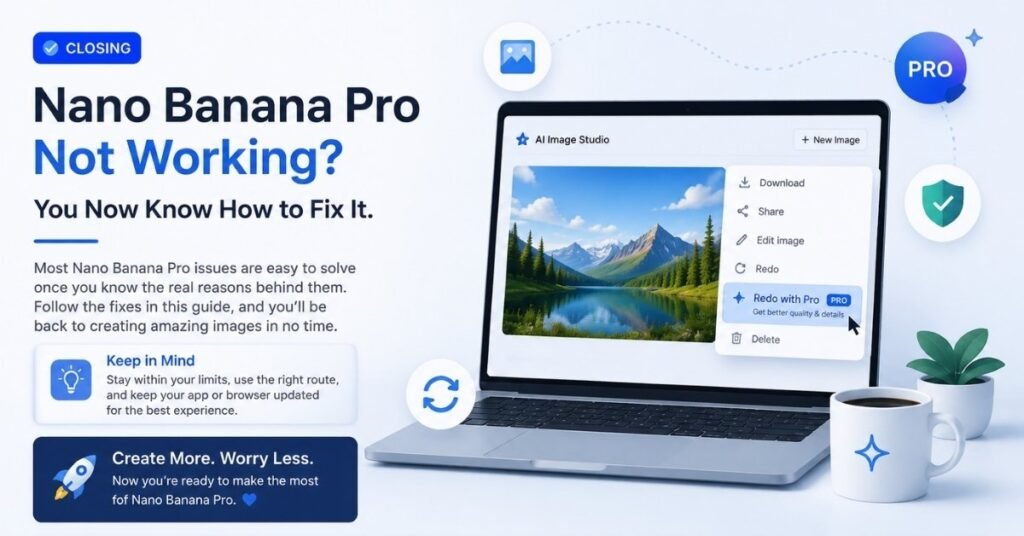
If Nano Banana Pro is not working, do not panic.
Most issues come from the wrong Gemini route, missing Redo with Pro, usage limits, account confusion, browser cache, or old app versions.
Start with a fresh chat. Use Create images. Generate one simple image first.
Then check the three-dot menu for Redo with Pro.
If that does not work, check your account, subscription, quota, app version, and browser.
Nano Banana Pro is powerful, but it works best when you use the correct Gemini path and keep your prompt clear.
Once you fix the access or session issue, you can go back to creating high-quality AI images, product mockups, posters, diagrams, and professional visuals without wasting time.