
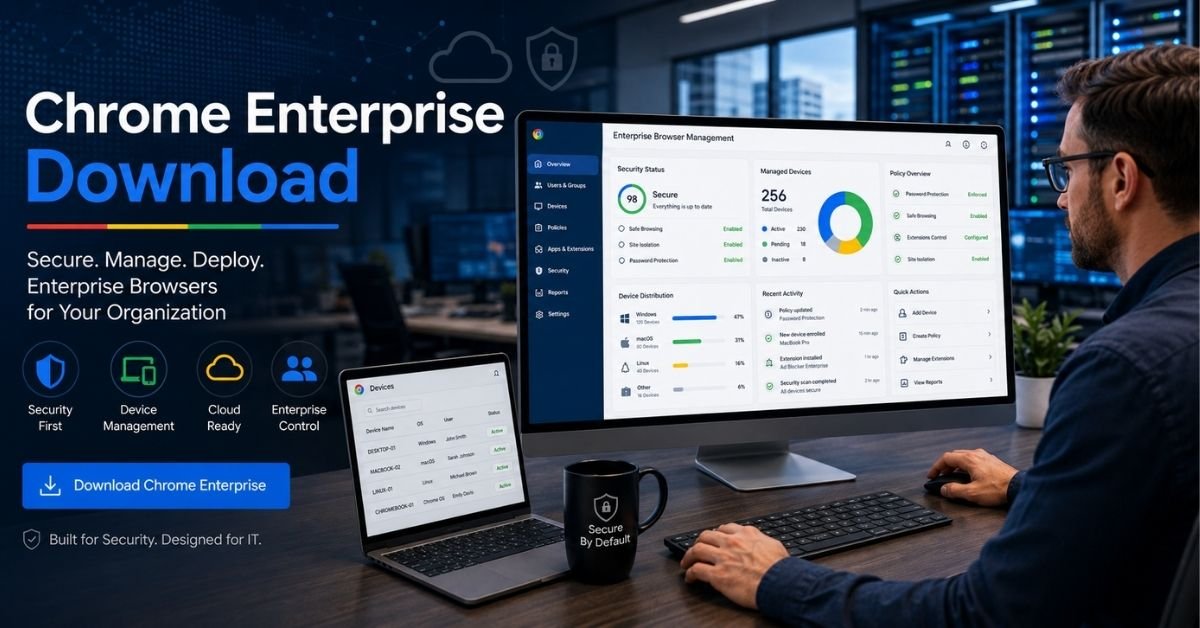
Businesses need more than a simple web browser. They need secure tools that help teams work efficiently, protect company data, and allow IT administrators to control browser settings across multiple devices. This is where Chrome Enterprise download becomes important.
Google Chrome Enterprise provides businesses with advanced browser management features, security controls, and deployment options that are not available in the standard Chrome browser. Companies can install Chrome Enterprise on employee devices, manage browser policies, control extensions, and improve security through centralized administration.
In this complete guide, we will explain everything about Chrome Enterprise download, including where to get it, how to install it, how the MSI installer works, deployment options, key features, common problems, and whether Chrome Enterprise is the right choice for your organization.
What Is Chrome Enterprise?
Chrome Enterprise is Google’s business-focused version of the Chrome browser designed for organizations that need better control, security, and management.
While regular Google Chrome works well for personal browsing, Chrome Enterprise gives IT teams additional tools to manage browsers across many computers. Companies can configure security settings, restrict unwanted extensions, manage updates, and apply browser policies from a central location.
Organizations commonly use Chrome Enterprise in:
- Small and large businesses
- Schools and universities
- Healthcare organizations
- Government departments
- Remote work environments
- Companies with large device fleets
Instead of manually configuring every computer, administrators can create policies once and apply them across hundreds or thousands of devices.
Why Do Businesses Need Chrome Enterprise?
A normal browser gives users access to websites, but businesses require stronger control over how employees use browsers.
Chrome Enterprise helps companies solve common IT challenges such as:
- Managing thousands of devices
- Protecting sensitive company information
- Controlling browser extensions
- Preventing unsafe downloads
- Keeping browsers updated
- Supporting remote employees
For example, an IT administrator can block unauthorized extensions, force secure browser settings, and automatically install approved business tools.
This reduces security risks and saves valuable management time.
Chrome Enterprise Download: What Does It Include?
When users search for Chrome Enterprise download, they are usually looking for more than just the Chrome browser installer.
Chrome Enterprise provides several business resources, including:
Chrome Enterprise Browser
The main browser package allows companies to install Chrome across employee devices while maintaining centralized control.
It includes:
- Enterprise security features
- Policy management support
- Automatic updates
- Extension controls
- User configuration options
Chrome Enterprise MSI Installer
The MSI installer is one of the most important parts of Chrome Enterprise deployment.
MSI (Microsoft Installer) files allow IT teams to install Chrome Enterprise on Windows computers using professional deployment tools.
Companies can use MSI packages with:
- Microsoft Intune
- Group Policy
- Microsoft Endpoint Configuration Manager (SCCM)
- Other software deployment platforms
The MSI format makes large-scale installation easier because administrators do not need to manually install Chrome on every device.
Chrome Enterprise Policy Templates
Chrome Enterprise includes administrative templates that allow IT teams to control browser behavior.
Administrators can manage settings such as:
- Homepage configuration
- Password management
- Extension permissions
- Safe browsing settings
- Update controls
- Download restrictions
These policies help organizations create a consistent browsing environment.
How to Download Chrome Enterprise

Downloading Chrome Enterprise is a simple process, but businesses should choose the correct package based on their operating system and management needs.
Follow these steps:
Step 1: Identify Your Requirements
Before starting the Chrome Enterprise download process, determine:
- Which operating system you use
- Number of devices you need to manage
- Deployment method
- Security requirements
Most organizations use Chrome Enterprise on Windows devices, but Chrome Enterprise supports multiple platforms.
Step 2: Choose the Correct Chrome Enterprise Package
Businesses usually select from options such as:
- Chrome Enterprise browser
- Chrome Enterprise MSI package
- Chrome Enterprise bundle
- Policy templates
The correct choice depends on whether you need simple installation or complete browser management.
Step 3: Download the Installer
After selecting the required package, download the installer file and save it to your management system.
For Windows environments, many organizations prefer the MSI installer because it works better with enterprise deployment tools.
Step 4: Install Chrome Enterprise
After downloading the installer:
- Open the installation file
- Follow the setup instructions
- Complete the installation
- Configure enterprise policies if required
For large organizations, administrators usually deploy Chrome silently using management platforms.
Chrome Enterprise MSI Download Explained

The Chrome Enterprise MSI download option is designed specifically for Windows administrators.
Unlike a normal browser installer, MSI packages provide better control during deployment.
Benefits of Using MSI Installer
Easy Deployment
IT teams can push Chrome installation remotely to many computers without visiting each device.
Better Management
Administrators can control installation settings and browser configurations.
Suitable for Large Organizations
Companies with hundreds or thousands of employees can automate browser deployment.
Chrome Enterprise Download for Windows 10 and Windows 11
Many businesses use Windows computers, making Chrome Enterprise deployment on Windows a common requirement.
Chrome Enterprise works with modern Windows environments, including:
- Windows 10
- Windows 11
- Enterprise-managed Windows devices
Before installation, organizations should check:
- Available storage space
- Administrator permissions
- Device management compatibility
- Network access
For company-managed devices, IT administrators usually combine Chrome Enterprise with tools like Microsoft Intune or Group Policy.
How to Install Chrome Enterprise on Business Devices
After completing the Chrome Enterprise download, the next step is installation. The installation method depends on whether you are setting up Chrome Enterprise on one computer or deploying it across an entire organization.
Small businesses may install Chrome manually, while larger companies usually use automated deployment tools.
Manual Installation Method
For a single device, administrators can install Chrome Enterprise by following these steps:
- Open the downloaded Chrome Enterprise installer.
- Run the setup file with administrator permissions.
- Allow the installation process to complete.
- Open Chrome and verify that the browser works correctly.
- Apply required business policies.
This method works well for small teams with only a few devices.
However, manually installing browsers on hundreds of computers is time-consuming. Large organizations normally choose centralized deployment.
Deploying Chrome Enterprise Across Multiple Devices
One of the biggest advantages of Chrome Enterprise is its ability to support large-scale deployment.
Instead of installing Chrome separately on every computer, IT teams can distribute the browser automatically.
Common deployment methods include:
Microsoft Intune Deployment
Microsoft Intune helps organizations manage devices, applications, and security settings from one platform.
With Intune, administrators can:
- Upload Chrome Enterprise packages
- Assign Chrome installation to user groups
- Control installation timing
- Manage browser settings remotely
This approach is popular among companies using Microsoft 365 environments.
Group Policy Deployment
Windows administrators can use Group Policy to install and manage Chrome Enterprise within a company network.
Group Policy allows organizations to:
- Push Chrome updates
- Apply browser restrictions
- Configure security settings
- Control employee browser behavior
This method is common in traditional Windows-based business environments.
Microsoft Configuration Manager (SCCM)
Large enterprises often use Microsoft Configuration Manager for software deployment.
SCCM allows IT teams to:
- Deploy Chrome Enterprise to thousands of computers
- Monitor installation status
- Schedule updates
- Manage software inventory
This gives administrators detailed control over browser management.
Chrome Enterprise Management Features
The main reason companies choose Chrome Enterprise is not only installation. The real value comes from management and security features.
Chrome Enterprise gives administrators control over browser settings through policies.
Extension Management
Browser extensions can improve productivity, but unsafe extensions can create security risks.
Chrome Enterprise allows companies to:
- Approve trusted extensions
- Block unauthorized extensions
- Force-install required business extensions
- Control extension permissions
For example, a company can automatically install a password manager extension on every employee device.
Browser Policy Control
Administrators can configure hundreds of Chrome policies.
These policies help control:
- Homepage settings
- Search engine preferences
- Password saving options
- Incognito mode access
- Download permissions
- Security settings
This creates a consistent browsing experience across all company devices.
Automatic Updates
Keeping browsers updated is essential for security.
Chrome Enterprise automatically receives security updates and new features from Google.
Businesses can also control update behavior to avoid unexpected changes during important work periods.
IT teams can decide:
- When updates install
- Which versions users receive
- How updates are tested before release
Chrome Enterprise Security Benefits

Security is one of the biggest reasons organizations choose Chrome Enterprise.
Modern businesses handle sensitive information every day, including customer data, financial records, and internal documents. A poorly managed browser can become a security risk.
Chrome Enterprise helps reduce these risks with built-in protections.
Modern businesses also rely heavily on cloud-based productivity tools and AI platforms. If employees experience connectivity problems while using online tools, troubleshooting guides like our ChatGPT network error fix guide can help resolve common browser and connection-related issues.
Safe Browsing Protection
Chrome Enterprise uses Google’s security technology to warn users about dangerous websites, phishing attempts, and harmful downloads.
This helps employees avoid common online threats.
Data Protection Controls
Businesses can create policies that protect company information.
Examples include:
- Blocking unsafe downloads
- Managing file access
- Restricting external websites
- Controlling browser permissions
These controls help prevent accidental data exposure.
Secure Remote Work Support
Many companies now have employees working from different locations.
Chrome Enterprise supports remote work by allowing administrators to manage browsers without physically accessing employee devices.
IT teams can:
- Apply security policies remotely
- Configure browser settings
- Monitor compliance
- Manage updates
Chrome Enterprise vs Regular Google Chrome

Many users wonder about the difference between Chrome Enterprise and the standard Chrome browser.
Both browsers are built on the same Chromium technology, but they serve different purposes.
| Feature | Regular Chrome | Chrome Enterprise |
| Personal browsing | Yes | Yes |
| Business management | Limited | Advanced |
| Central policy control | No | Yes |
| MSI deployment | No | Yes |
| Extension management | Basic | Advanced |
| Enterprise security tools | Limited | Extensive |
| Large-scale deployment | Not designed for it | Supported |
Regular Chrome works perfectly for individual users. Chrome Enterprise is designed for organizations that need centralized management.
Is Chrome Enterprise Free?
A common question after searching for Chrome Enterprise download is whether the service requires payment.
The answer depends on which features a company needs.
Google provides Chrome Enterprise options for different business requirements.
Chrome Enterprise Core
Chrome Enterprise Core provides essential browser management features and is available without additional licensing costs.
It includes features such as:
- Browser management
- Policy controls
- Security settings
- Basic administration tools
This option works well for many organizations.
Chrome Enterprise Premium
Chrome Enterprise Premium provides additional security and management capabilities.
It is designed for organizations that need advanced protection, including stronger security controls and deeper visibility.
Companies with strict compliance requirements often consider premium solutions.
Common Chrome Enterprise Download Problems and Fixes
Although Chrome Enterprise installation is usually straightforward, users may face technical issues.
Browser and account synchronization problems are common in modern software environments. Similar access issues can happen with online platforms, such as missing features after subscription activation, which we covered in our guide about ChatGPT Plus features not appearing after payment.
Below are common problems and solutions.
Chrome Enterprise Installer Will Not Open
Possible Causes:
- Lack of administrator permissions
- Corrupted installer file
- Security software blocking installation
Solutions:
- Run the installer as administrator
- Download the installer again
- Check antivirus restrictions
- Verify Windows permissions
Chrome Enterprise MSI Installation Failed
MSI installation errors are common in managed environments.
Possible reasons include:
- Previous Chrome installation conflicts
- Incorrect deployment settings
- Windows Installer service issues
Try these solutions:
- Remove old Chrome versions
- Restart the Windows Installer service
- Check MSI deployment logs
- Confirm administrator access
Chrome Policies Are Not Applying
Sometimes administrators create policies, but users do not see the changes.
Possible causes:
- Policy was assigned incorrectly
- Device has not refreshed settings
- Wrong configuration template was used
Solutions:
- Force a policy update
- Check Chrome policy settings
- Verify device enrollment status
- Restart Chrome
Chrome Enterprise Updates Are Not Installing
Browser updates may fail because of:
- Network restrictions
- Update policies
- Security software interference
Administrators should check update settings and confirm that Chrome update services are allowed.
Chrome Enterprise Best Practices for Businesses
Installing Chrome Enterprise is only the first step. To get the best results, organizations should follow proper management practices.
A well-configured browser environment improves security, reduces IT workload, and gives employees a smoother browsing experience.
Create Clear Browser Policies
Before deploying Chrome Enterprise across devices, IT teams should define browser rules.
Important policies may include:
- Approved extensions
- Website access rules
- Password settings
- Download restrictions
- Security configurations
- Update schedules
Clear policies prevent confusion and help employees follow company security standards.
Test Policies Before Company-Wide Deployment
A common mistake is applying new browser policies to every employee immediately.
A better approach is to test changes with a small group first.
For example:
- Create a test user group.
- Apply new Chrome Enterprise policies.
- Check browser behavior.
- Fix any problems.
- Deploy to all devices.
This reduces the risk of disrupting business operations.
Keep Chrome Enterprise Updated
Outdated browsers create security weaknesses.
Organizations should maintain regular update processes to ensure users receive the latest security improvements.
IT teams should:
- Monitor Chrome versions
- Test important updates
- Remove unsupported versions
- Maintain update policies
Regular updates help protect against new online threats.
Control Browser Extensions Carefully
Extensions are useful, but every extension creates another potential security point.
Companies should avoid allowing employees to install unlimited extensions.
Recommended practices include:
- Allow only trusted extensions
- Review extension permissions
- Remove unnecessary extensions
- Monitor new extension requests
This reduces the chance of installing unsafe browser add-ons.
Who Should Use Chrome Enterprise?
Chrome Enterprise is designed for organizations that need more control over browser usage.
It is suitable for:
Small Businesses
Small companies can use Chrome Enterprise to create consistent browser settings without hiring large IT teams.
Benefits include:
- Easier device management
- Better security
- Simple policy control
Large Enterprises
Large organizations often manage thousands of computers.
Chrome Enterprise helps enterprise IT teams:
- Deploy browsers quickly
- Manage employee devices
- Apply security standards
- Reduce manual work
Educational Institutions
Schools and universities use Chrome Enterprise to manage student and staff devices.
Administrators can:
- Restrict unsafe websites
- Control student browsing
- Manage classroom devices
- Apply security rules
Healthcare Organizations
Healthcare companies must protect sensitive information.
Chrome Enterprise helps healthcare IT teams create safer browsing environments through controlled settings and security policies.
Chrome Enterprise Alternatives
Although Chrome Enterprise is one of the most popular business browsers, organizations may compare it with other enterprise browser solutions.
Microsoft Edge for Business
Microsoft Edge for Business provides enterprise browser management features and integrates closely with Microsoft environments.
It is often considered by companies already using Microsoft 365 and Azure services.
Firefox Enterprise
Firefox Enterprise provides organizations with browser management tools, security settings, and policy controls.
Some companies choose Firefox because of its open-source background and customization options.
Safari for Business
Organizations using Apple devices may consider Safari management through Apple enterprise tools.
It works well in environments that rely heavily on macOS and iOS devices.
Chrome Enterprise Download: Frequently Asked Questions
Where can I get the Chrome Enterprise download?
Chrome Enterprise can be downloaded through Google’s official enterprise browser resources. Businesses can select the correct package, including MSI installers and management tools, depending on their deployment needs.
Is Chrome Enterprise different from normal Chrome?
Yes. Chrome Enterprise uses the same Chrome browser technology but includes additional management features for organizations.
The main difference is centralized control, policy management, and enterprise deployment support.
Is Chrome Enterprise free to use?
Chrome Enterprise Core provides many browser management features without additional licensing costs. Organizations that need advanced security capabilities can choose paid enterprise options.
What is Chrome Enterprise MSI?
Chrome Enterprise MSI is a Windows installation package designed for business deployment.
It allows administrators to install Chrome on multiple computers using tools like Microsoft Intune, Group Policy, and SCCM.
Can I install Chrome Enterprise on Windows 11?
Yes. Chrome Enterprise supports modern Windows environments, including Windows 10 and Windows 11.
Businesses can deploy it manually or through device management platforms.
Can Chrome Enterprise manage browser extensions?
Yes. Administrators can control extensions by allowing, blocking, or automatically installing approved extensions across managed devices.
Does Chrome Enterprise work for remote employees?
Yes. Chrome Enterprise supports remote management, allowing IT teams to apply security policies and manage browser settings without physical access to employee devices.
What is the difference between Chrome Enterprise Core and Premium?
Chrome Enterprise Core focuses on essential browser management features, while Chrome Enterprise Premium provides additional security and advanced controls for organizations with higher security requirements.
Final Thoughts: Is Chrome Enterprise Download Worth It?
For organizations that need a secure and manageable browser environment, Chrome Enterprise download provides a practical solution.
A standard browser may work for personal use, but businesses need more control. Chrome Enterprise helps IT teams manage devices, enforce security policies, control extensions, and simplify browser deployment.
Whether you manage a small business with a few computers or a large organization with thousands of devices, Chrome Enterprise provides tools that make browser administration easier.
The biggest advantage is flexibility. Companies can start with basic management features and expand their security controls as their needs grow.
If your organization needs reliable browser management, better security, and easier deployment, Chrome Enterprise is a strong choice for modern business environments.
TechCrashFix.com helps users and businesses understand software tools, solve technical problems, and improve their digital workflows with practical technology guides.