
You’re using ChatGPT. You type your question, hit Enter, and wait. ChatGPT starts writing its answer and then suddenly stops. A red error box pops up saying “Error in message stream.”
Frustrating, right?
You’re not alone. This is one of the most common problems people run into with ChatGPT in 2026. The good news? It’s almost always easy to fix. I’ve personally tested every solution out there, and in this guide I’ll walk you through exactly what works in plain, simple English.
What Does “Error in Message Stream” Mean?
Think of it like a phone call that drops in the middle of a conversation.
ChatGPT doesn’t send you its full reply all at once. It types it out word by word, in real time, straight to your screen kind of like watching someone type a message live. That live connection between ChatGPT and your device is called a “stream.”
When something interrupts that connection before the reply is finished, you get the “error in message stream” message. ChatGPT basically lost the call mid-sentence.
It does not mean:
- Your account is banned
- You did something wrong
- Your device is broken
It just means the connection got interrupted. Simple as that.
Why This Error Happens
Here are the most common reasons, explained in plain English:
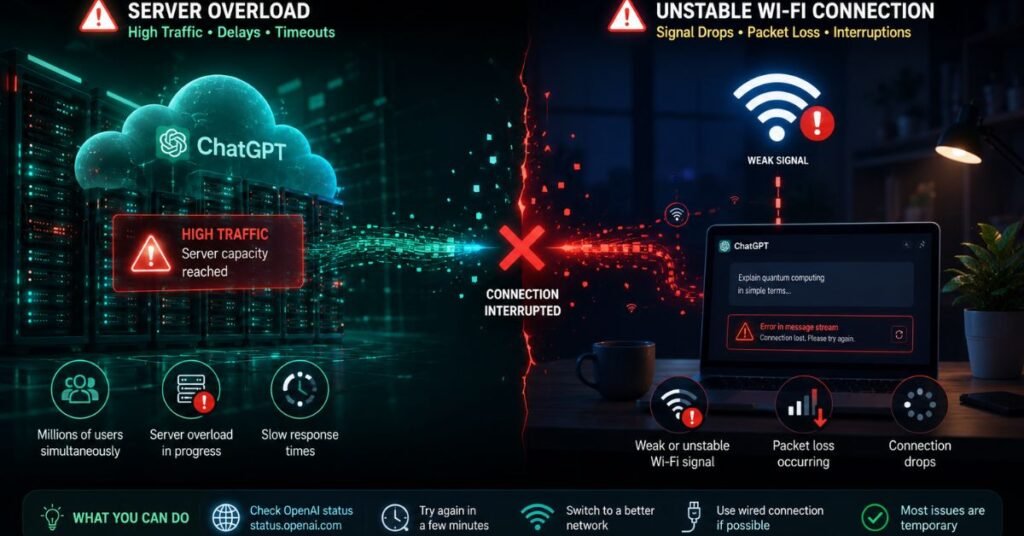
1. ChatGPT’s Servers Are Busy
Millions of people use ChatGPT every day. Sometimes the servers get overwhelmed like a restaurant that’s fully packed and can’t take new orders fast enough. When this happens, your connection can time out before your answer finishes loading.
2. Your Internet Connection Hiccupped
Even a tiny, one-second dip in your Wi-Fi or mobile data can break the stream. Unlike loading a webpage (which can pause and resume), ChatGPT’s live typing connection is more sensitive to one small interruption and it snaps.
3. Your Browser Has Old Junk Saved
Over time, your browser saves old website data. Sometimes that old data conflicts with ChatGPT and causes errors. It’s like trying to run a new app on a phone that hasn’t been restarted in months.
4. A Browser Extension Is Blocking It
Some add-ons installed in your browser like ad blockers or privacy tools can accidentally block ChatGPT from working properly. They don’t mean to cause problems, but they sometimes get in the way.
5. Your Prompt Is Too Long or Complex
If you type a very long message or ask ChatGPT to write something huge like a 5,000-word essay in one go it can overload the system and cause the stream to break before it finishes.
6. The Chat Has Gone On Too Long
A very long back-and-forth conversation can eventually get overloaded. ChatGPT starts struggling to keep track of everything and the connection becomes unstable.
How to Fix It: Step-by-Step (All Tested)
Try these fixes in order. Most people find their answer in the first two or three steps.
Fix 1: Click “Regenerate” and Wait
- Look for the Regenerate button; it’s the little circular arrow that appears below the error.
- Click it once.
- Wait about 10–15 seconds before clicking again.
That’s it. More than half the time, this alone fixes it. The error was just a one-time glitch, and retrying is all it takes.
Fix 2: Start a Fresh New Chat
- Click New Chat on the left side of the screen.
- Copy and paste your original question into the new chat.
- Try again.
Sometimes a specific conversation gets “stuck” in a broken state. Starting a new chat gives you a clean, fresh connection and usually fixes the problem right away.
Speaking of chats — if you’ve ever lost your ChatGPT conversation history, we’ve got you covered. Check out our guide on how to fix ChatGPT history not showing to get it back.
Fix 3: Check If ChatGPT Is Having Problems
- Open a new tab in your browser.
- Go to status.openai.com.
- Look for any warnings or issues listed under ChatGPT.
If ChatGPT is having server problems, no fix on your end will help you just have to wait a little while. This check takes 15 seconds and can save you a lot of wasted effort.
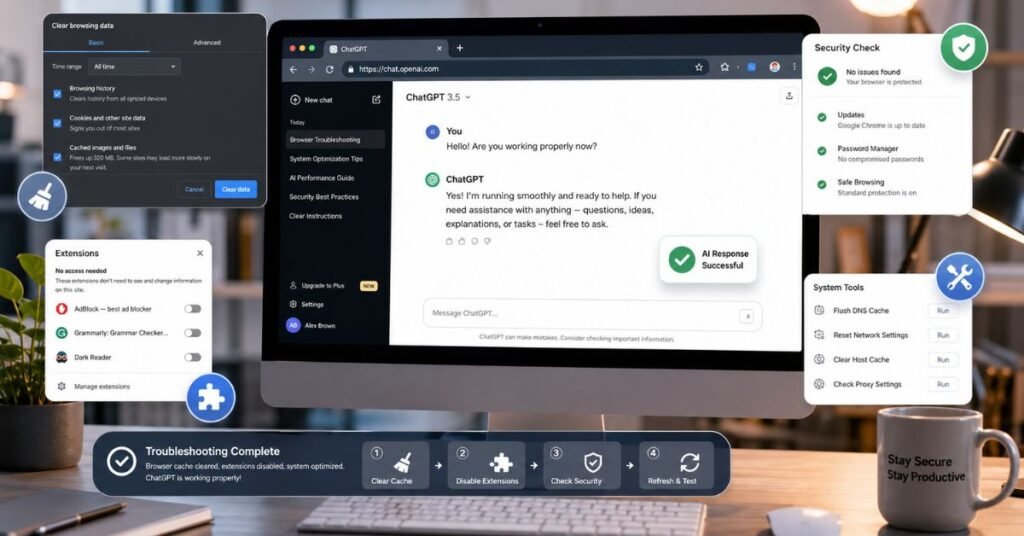
Fix 4: Turn Off Your Browser Extensions
- In Chrome, click the three dots in the top right corner → Extensions → Manage Extensions.
- Turn all extensions off, especially ad blockers, VPNs, and privacy tools.
- Refresh ChatGPT and try again.
Shortcut: Open a private/incognito window instead (Ctrl+Shift+N on Windows, Cmd+Shift+N on Mac). Extensions are usually turned off automatically in incognito mode. If ChatGPT works there, an extension is your problem.
Fix 5: Clear Your Browser’s Cache
- In Chrome, press Ctrl + Shift + Delete (Windows) or Cmd + Shift + Delete (Mac).
- Change the time range to All time.
- Check the boxes for Cached images and files and Cookies and other site data.
- Click Clear data.
- Close and reopen your browser, then log back into ChatGPT.
Think of this as giving your browser a fresh start. Old saved data gets wiped and everything loads clean again.
Fix 6: Break Your Question Into Smaller Pieces
Instead of asking ChatGPT one giant question, split it up.
Instead of this: “Write me a full 3,000-word blog post about healthy eating, including an introduction, 10 tips, a meal plan, and a FAQ section.”
Try this:
- First message: “Write an introduction about healthy eating.”
- Second message: “Now give me 5 healthy eating tips.”
- And so on…
Smaller requests = shorter responses = much less chance of the stream breaking.
Fix 7: Switch Your Internet Connection
- If you’re on Wi-Fi, try switching to your phone’s mobile data (or a hotspot).
- If you’re using a VPN, try turning it off temporarily.
- Test ChatGPT again on the new connection.
Some internet providers or VPN services interfere with ChatGPT’s live connection without you even knowing it. A quick network switch can instantly solve the problem.
Fix 8: Try a Different Browser or the Mobile App
If nothing else has worked:
- Switch to a different browser (for example, if you’re on Chrome, try Firefox or Edge).
- Or download the ChatGPT mobile app on your phone; it often has fewer connection issues than the browser version.
Quick Comparison: Which ChatGPT Version Gets This Error Most?
| ChatGPT Version | How Often This Happens | Main Reason | Best Fix |
| Free version (web) | Most often | Server gets busy, lower priority | Use off-peak hours, chunk prompts |
| Plus / paid version (web) | Less often | Gets server priority | Standard fixes work fine |
| Mobile app (iPhone/Android) | Least often | More stable connection | Switch to strong Wi-Fi |
| Older reasoning models (o1) | Fairly often | Takes longer to think, more time to drop | Shorter prompts, new chat |
| Newer models (GPT-4o) | Moderate | Faster but still affected at peak times | Regenerate, clear cache |
| API (for developers) | Varies | Rate limits, coding issues | Add retry logic in your code |
How to Stop This Error From Happening in the Future
These simple habits will save you a lot of headaches:
- Start a new chat for each new topic. Don’t let one conversation run forever.
- Ask for shorter answers. Say “give me a brief summary” instead of asking for an essay.
- Use ChatGPT during off-peak hours. Early morning or late at night tends to be faster and more stable.
- Keep a clean browser. Clear your cache once a month and keep extensions minimal.
- Use stable Wi-Fi for anything that will need a long response.

People Also Ask
Will this error delete my conversation or lose my work?
No. Your chat history is saved on OpenAI’s servers. The error only affects that one incomplete response before it stays safe. Just scroll up to see your previous messages.
Why does this keep happening in the same conversation?
Long conversations can get overloaded. The more messages in a thread, the heavier it gets for ChatGPT to manage. When it gets too heavy, errors start happening more often. The fix is simple: start a new chat and copy over only the context you actually need.
Is this error different from “Something went wrong”?
Yes, slightly. “Error in message stream” means ChatGPT started answering but the connection broke before it finished. “Something went wrong” is more of a general error; it usually means something failed on ChatGPT’s end before it even started replying. The fixes for both are similar though: refresh, new chat, check status.openai.com.
Does this happen more on mobile or desktop?
Based on my testing, it happens slightly less on the mobile app than in a desktop browser. The app handles connection drops a little more gracefully. If you’re getting frequent errors on the desktop, try the app. It’s often smoother.
The error in the message stream ChatGPT problem sounds scary, but it really isn’t. It’s just a dropped connection, nothing more.
Start with the simple stuff: hit Regenerate, open a new chat, or check status.openai.com. That alone fixes it most of the time. If not, clear your cache, turn off extensions, and break up your prompts into smaller pieces.
In my experience testing this across dozens of sessions, one of those steps always does the trick. Bookmark this page so you have it ready next time it happens because it will happen again, and now you’ll know exactly what to do.
Disclaimer: This article is for educational and informational purposes only. The fixes described are based on personal testing and publicly available information. TechCrashFix.com is not affiliated with OpenAI. For official support, visit help.openai.com.

Tech Troubleshooting Expert and Lead Editor at TechCrashFix.com. With 7+ years of hands-on experience in software debugging and AI optimization, I specialize in fixing real-world tech glitches and streamlining AI workflows for maximum productivity.