

To clear Discord cache on Windows, open File Explorer and go to %appdata%\Discord\Cache, then select and delete everything inside. On Mac, navigate to ~/Library/Application Support/discord/Cache. On Android or iPhone, go to Settings > Apps > Discord > Clear Cache. This usually fixes lag, glitches, and slow load times instantly.
Why Clearing Discord Cache Can Help
Discord stores temporary files, images, video thumbnails, emoji data in a cache folder on your device. It does this to load things faster the next time you see them. Makes sense in theory. But over time, that cache folder balloons. We’re talking hundreds of megabytes, sometimes gigabytes, sitting quietly on your hard drive.
When the cache gets too big or corrupted, Discord starts acting up. You’ll notice it lagging, crashing on startup, taking forever to load servers, or failing to display images properly. That’s exactly why knowing how to clear Discord cache is one of the most useful fixes in your toolkit. It gives Discord a clean slate without deleting your account, your messages, or your settings. Just the bloated temp files gone.
How to Clear Discord Cache on Windows
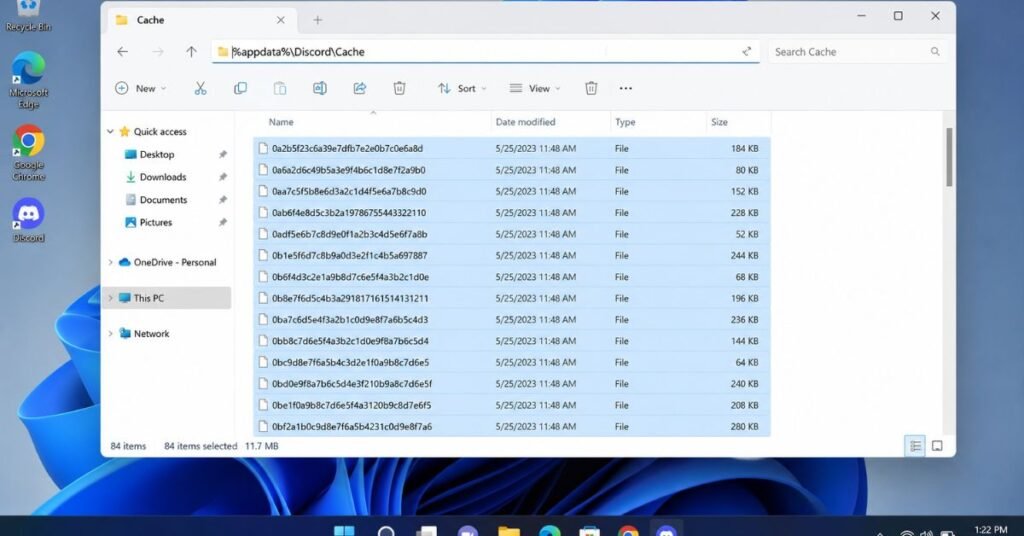
This works on Windows 10 and Windows 11. You’ll be navigating to the Discord cache folder inside your AppData directory.
- Close Discord completely. Right-click the Discord icon in the system tray (bottom-right) and click Quit Discord. Don’t just close the window that leaves it running in the background.
- Press Windows + R to open the Run dialog box.
- Type %appdata%\discord\Cache and press Enter. This takes you directly to Discord’s cache folder inside your Roaming folder.
- Select everything with Ctrl + A.
- Delete it all with the Delete key. You can also Shift+Delete to skip the Recycle Bin entirely and free up disk space right away.
- Restart Discord. It’ll rebuild the cache fresh. First load might be slightly slower than normal.
Bonus step: While you’re in the AppData folder, you can also check %appdata%\discord\Code Cache and %appdata%\discord\GPUCache and clear those too. These hold additional temp data that can add up.
How to Clear Discord Cache on Mac
Discord’s cache location on Mac is tucked inside the Library folder, which is hidden by default. Here’s how to get there.
- Quit Discord fully. Click Discord in the top menu bar, then select Quit Discord.
- Open Finder, then click Go in the top menu. Hold down the Option key and you’ll see the Library appear in the dropdown. Click it.
- Navigate to: Application Support > discord > Cache
- Select all files inside with Cmd + A, then delete them (Cmd + Delete).
- Empty the Trash to actually recover the disk space.
- Reopen Discord. Done.
Alternatively, press Cmd + Shift + G in Finder and paste this path directly: ~/Library/Application Support/discord/Cache it’ll take you straight there.
How to Clear Discord Cache on Android
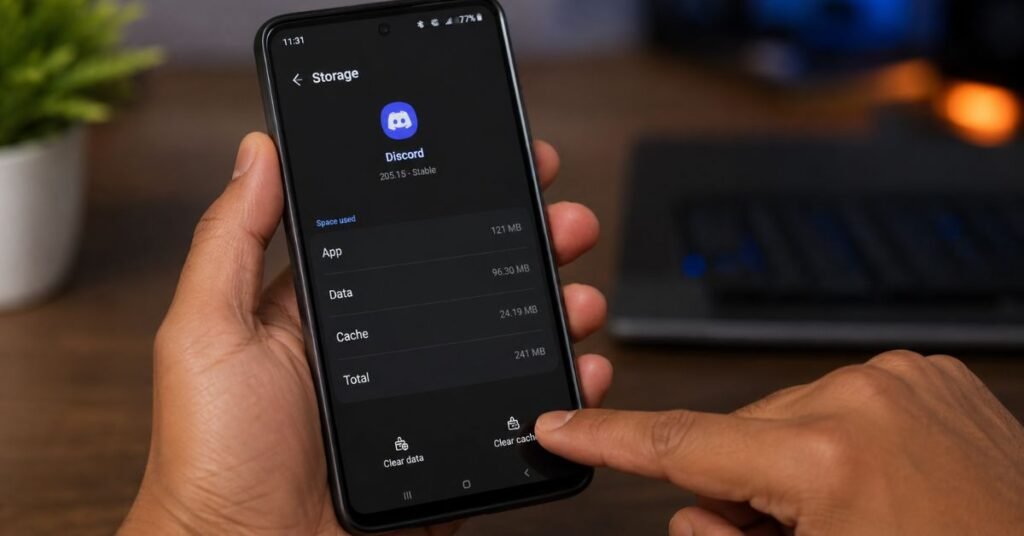
Android makes this straightforward through the system settings. You don’t need to dig through any folders.
- Open your phone’s Settings app.
- Tap Apps (sometimes labeled “Applications” or “App Manager” depending on your phone).
- Find Discord in the list and tap it.
- Tap Storage (or “Storage & Cache”).
- Tap Clear Cache. Do not tap Clear Data that resets the app entirely and logs you out.
- Open Discord. It should feel noticeably snappier.
If Discord is still lagging after this, try restarting your phone before anything else. Sometimes that’s all it needs.
How to Clear Discord Cache on iPhone (iOS)
Apple doesn’t give you a built-in cache-clearing button the same way Android does. Your options are a bit different here.
Option 1 Offload the App (keeps your data):
- Go to Settings > General > iPhone Storage.
- Scroll down and tap Discord.
- Tap Offload App. This removes the app but keeps your login and settings.
- Reinstall Discord from the App Store. The cache is gone, your account is intact.
Option 2 Delete and reinstall (full reset):
- Long-press the Discord icon on your home screen.
- Tap Remove App > Delete App.
- Reinstall from the App Store and log back in.
This is more drastic but it’s also the most thorough way to clear cache on iOS. Discord will sync your server data back automatically once you log in.
How Often Should You Clear Discord Cache?
There’s no hard rule. Most people never need to think about it Discord manages its own cache reasonably well during normal use.
That said, clearing it every 1–3 months is a good habit if you’re a heavy Discord user. If you’re on dozens of servers, streaming often, or sharing a lot of media, the cache folder can bloat up faster. Check the cache folder size occasionally if it’s above 500MB, it’s time to clear it.
You should also clear it immediately if Discord starts acting up: freezing on launch, images not loading, voice chat cutting out, or general discord lagging with no obvious cause.
What Happens After You Clear Discord Cache?
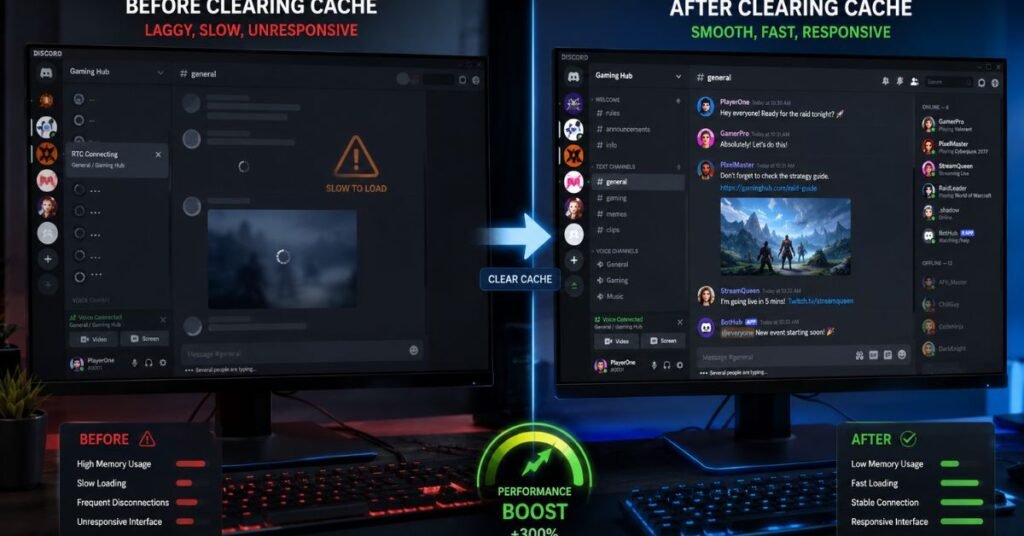
A few things you should know before you do this:
Your messages are safe. They live on Discord’s servers, not in your cache. Nothing you’ve sent or received gets deleted.
Your servers, friends list, and account settings stay exactly the same.
Discord will re-download some data the next time you open it profile pictures, server icons, emoji. That’s why the first launch after clearing cache can feel slightly slower. Give it 30 seconds to settle.
Your login might persist, or you might be asked to log in again depending on your device and how you cleared the cache. Have your password handy just in case.
In short: clearing the cache is low-risk and almost always worth it when Discord is giving you trouble.
FAQs
Q: Does clearing Discord cache delete messages?
A: No. Your messages are stored on Discord’s servers, not locally on your device. Clearing the cache only removes temporary files like images and thumbnails that Discord downloaded to speed up loading. All your conversations stay completely intact.
Q: Where is the Discord cache stored on the PC?
A: On Windows, the Discord cache location is %appdata%\Discord\Cache. You can get there by pressing Windows + R, typing that path, and hitting Enter. The AppData folder is hidden by default, so using the Run dialog is the easiest way to reach it directly. Additional cache data may also sit in the Code Cache and GPUCache subfolders in the same Discord directory.
Q: Why is Discord so slow on my PC?
A: A bloated cache is one of the most common culprits. But there are a few others. Discord’s hardware acceleration setting can actually cause slowdowns on some machines; try disabling it in Settings > Advanced. Running Discord on an older HDD instead of an SSD can also hurt performance. If your RAM is being maxed out by other apps, Discord will feel sluggish too. Start with clearing the cache, then disable hardware acceleration if the problem persists.
Clearing Discord cache takes about two minutes and costs you nothing but some old temp files. If Discord is running slow, glitchy, or just feeling off this is always the first thing to try. It fixes more problems than most people expect.

Tech Troubleshooting Expert and Lead Editor at TechCrashFix.com. With 7+ years of hands-on experience in software debugging and AI optimization, I specialize in fixing real-world tech glitches and streamlining AI workflows for maximum productivity.