
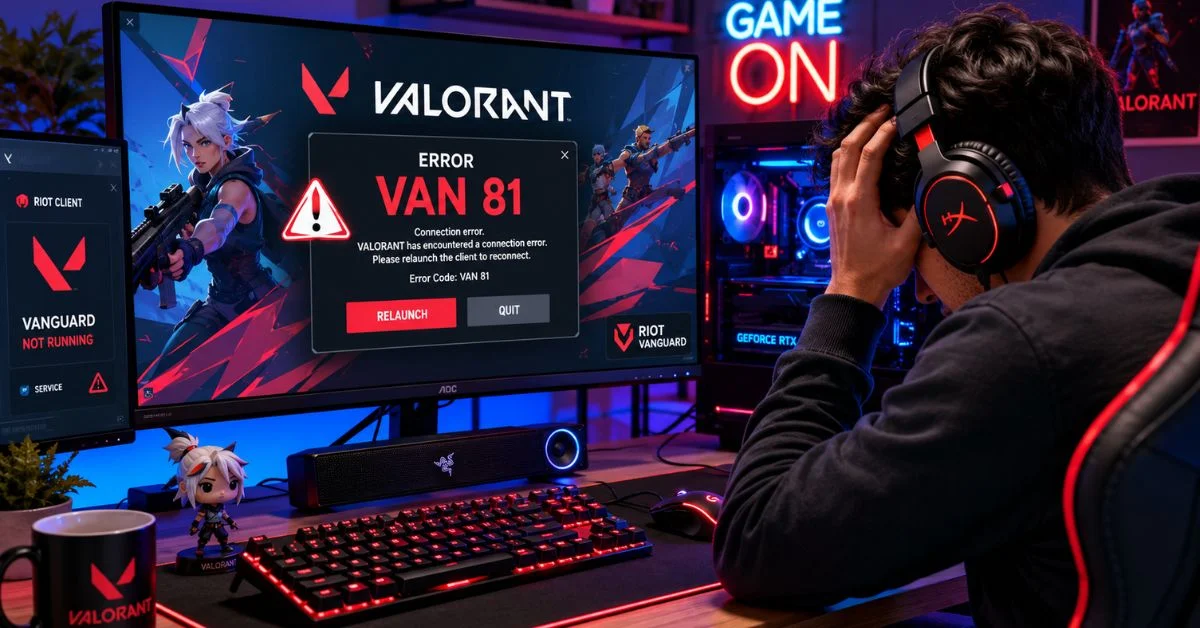
VAN 81 in Valorant is a connection error caused by Riot Vanguard failing to load properly or being blocked by your system. The valorant error code van 81 usually means the VGC service isn’t running, your firewall is blocking it, or the Riot Client lost its connection. Most players fix it in under 5 minutes.
What Is the VAN 81 Error in Valorant?
VAN 81 is a Riot Vanguard anti-cheat error. Valorant can’t verify your system before letting you into a match; the game won’t launch until Vanguard is running correctly.
The van 81 valorant error usually appears after a Windows update, a system restart, or when a firewall, antivirus, or third-party app blocks the VGC service from loading.
Here’s a quick breakdown of the most common causes and where to start:
| Cause | Most Likely Fix |
| VGC service not running | Fix 4 Set VGC to start automatically |
| Riot Client closed incorrectly | Fix 1 Full restart of Valorant + Riot Client |
| Firewall or antivirus blocking Vanguard | Fix 5 Add Vanguard as an exception |
| Corrupted Vanguard installation | Fix 7 Reinstall Vanguard completely |
| Cached network/DNS issue | Fix 6 Flush DNS and reset network |
| One-off software glitch | Fix 2 Simple PC restart |
| Missing admin permissions | Fix 3 Run as administrator |
Fix 1: Restart Valorant and the Riot Client Completely
This sounds basic. It works more often than you’d think. A partial shutdown of the Riot Client leaves background processes running, and those can conflict with Vanguard on relaunch.
- Press Ctrl + Shift + Esc to open the Task Manager.
- Look for any processes named Valorant, VALORANT-Win64-Shipping, RiotClientServices, or vgc.
- Right-click each one and select End Task.
- Wait about 10 seconds.
- Reopen the Riot Client and launch Valorant normally.
Don’t just close the window make sure everything is actually killed in Task Manager first.
Fix 2: Restart Your PC
If Fix 1 didn’t do it, restart the whole machine. A proper reboot clears memory, resets background services, and lets Vanguard initialize fresh on startup.
- Click the Start menu.
- Select Power → Restart (not Shut Down Restart forces a full reload).
- Once your PC is back on, launch Valorant before opening anything else.
Many VAN 81 errors disappear after a clean restart. Do this before anything more involved. It takes 60 seconds and saves you a lot of time.
Fix 3: Run Valorant as Administrator
Vanguard needs deep system access to do its job. If it doesn’t have the right permissions, it can fail silently and throw error codes like VAN 81.
- Close Valorant and the Riot Client completely (use Task Manager as in Fix 1).
- Find the Riot Client shortcut on your desktop.
- Right-click it and select Run as administrator.
- Let the client open and launch Valorant from there.
If this fixes it, you can make it permanent: right-click the shortcut → Properties → Compatibility tab → check Run this program as an administrator → click Apply.
Fix 4: Set the VGC Service to Start Automatically
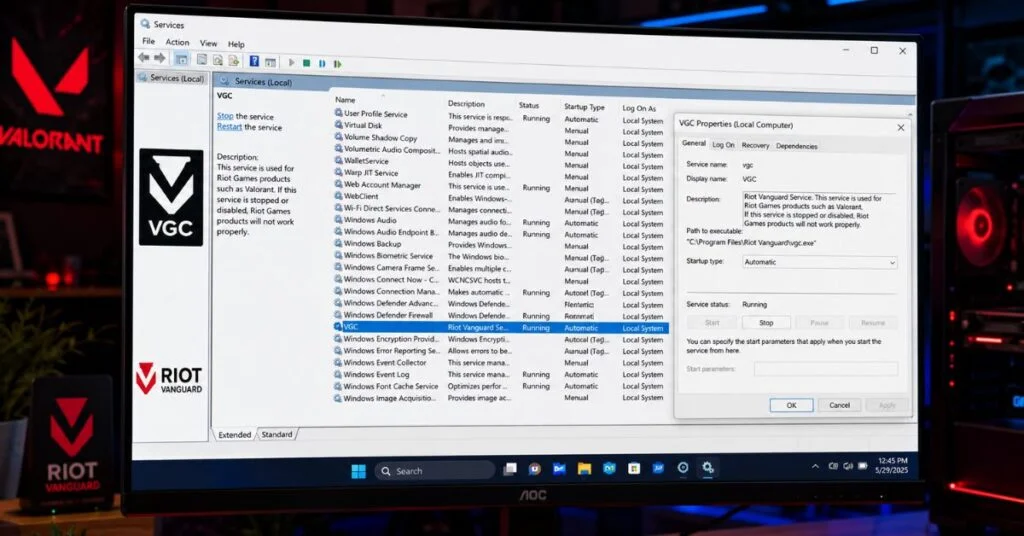
This is one of the most reliable fixes for VAN 81. The VGC service is Vanguard’s core process; if it’s set to “Manual” instead of “Automatic,” it won’t launch on startup and Valorant throws the error.
- Press Windows + R, type services.msc, and hit Enter.
- Scroll down the list and find vgc.
- Double-click it to open its properties.
- Under Startup type, change the dropdown to Automatic.
- Click Start under Service status if it isn’t already running.
- Hit Apply, then OK.
- Restart your PC and launch Valorant.
While you’re in Services, also check for a service called Riot Vanguard or vgk and apply the same settings if it shows up.
Fix 5: Add Vanguard as an Exception in Your Firewall/Antivirus
Antivirus software and Windows Firewall sometimes flag Vanguard as suspicious because it operates at the kernel level. When they block it, you get errors like VAN 81.
For Windows Defender Firewall:
- Open Windows Security → Firewall & network protection.
- Click Allow an app through the firewall.
- Click Change settings, then Allow another app.
- Browse to C:\Program Files\Riot Vanguard\ and add vgc.exe and vgtray.exe.
- Make sure both Private and Public boxes are checked.
- Click OK and restart your PC.
For third-party antivirus (Malwarebytes, Avast, Bitdefender, etc.):
- Open your antivirus settings.
- Find the Exclusions or Exceptions section.
- Add the entire folder: C:\Program Files\Riot Vanguard\
- Save the settings and restart.
If you’re not sure your antivirus is the problem, temporarily disable it, launch Valorant, and see if the error clears. If it does, exclusions are your fix.
Fix 6: Flush DNS and Reset Network Settings
Occasionally the VAN 81 connection error is tied to stale DNS cache or a corrupted network config. It’s less common than the Vanguard service issues, but it’s a quick one to rule out.
- Click the Start menu, type cmd, right-click Command Prompt, and select Run as administrator.
- Type each of the following commands, pressing Enter after each one:
netsh winsock reset
netsh int ip reset
ipconfig /release
ipconfig /flushdns
and ipconfig /renew
- Close Command Prompt.
- Restart your PC.
- Open Valorant and check if the error is gone.
This resets your network stack to defaults. It won’t affect your internet connection or settings, it just clears cached data that might be causing the conflict.
Fix 7: Reinstall Riot Vanguard Completely
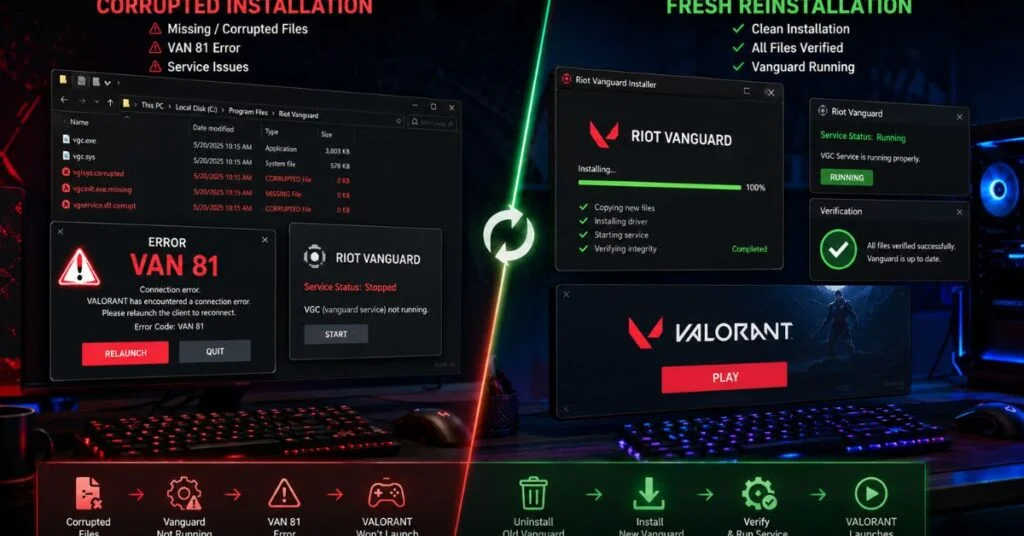
If nothing above has worked, Vanguard itself is likely corrupted or improperly installed. A clean reinstall is the most thorough fix for persistent VAN 81 errors.
- Press Windows + I to open Settings.
- Go to Apps → Installed apps (or Add/Remove Programs on older Windows).
- Search for Riot Vanguard and click Uninstall.
- Once it’s removed, restart your PC.
- Open the Riot Client and attempt to launch Valorant.
- The client will automatically detect that Vanguard is missing and reinstall it.
- Follow any on-screen prompts, then restart your PC one more time when asked.
Don’t uninstall Valorant itself, just Vanguard. The game files stay intact.
Is VAN 81 a Server-Side Issue? How to Check
Most of the time, VAN 81 is a local problem on your PC. But occasionally Riot’s own servers cause authentication failures that look identical.
Before spending 30 minutes troubleshooting your system, take 30 seconds to check:
- Visit status.riotgames.com and select your region.
- Check for any active incidents or maintenance notices on Valorant.
- You can also check @riotsupport on Twitter/X they post updates during outages quickly.
If there’s an ongoing incident, there’s nothing to fix on your end. Just wait it out. If the server status page shows all-clear, the issue is definitely local and one of the seven fixes above will sort it.
FAQs About Valorant VAN 81 Error
What causes VAN 81 error in Valorant?
VAN 81 is caused by Riot Vanguard failing to connect or initialize properly. The most common reasons are the VGC service not running on startup, a firewall or antivirus blocking Vanguard, insufficient administrator permissions, or a corrupted Vanguard installation. Windows updates can also disrupt the VGC service settings without warning.
Does VAN 81 mean Valorant servers are down?
Not usually. VAN 81 is almost always a local issue with Vanguard on your machine, not a server outage. Check status.riotgames.com first to rule out a Riot-side incident before troubleshooting your PC.
How do I restart Riot Vanguard to fix VAN 81?
Open Task Manager (Ctrl + Shift + Esc), find any processes named vgc, vgk, or RiotClientServices, and end all of them. Then go to Services (Windows + R → services.msc), find the vgc service, and click Start. Restart your PC and relaunch Valorant. If the service keeps stopping, set its Startup type to Automatic so it runs every time your PC boots.
VAN 81 is annoying but almost always fixable in a few minutes. Start with the simple stuff, restart the client, reboot your PC and work down the list if needed. Setting the VGC service to start automatically (Fix 4) solves it permanently for most players who keep seeing it come back.