
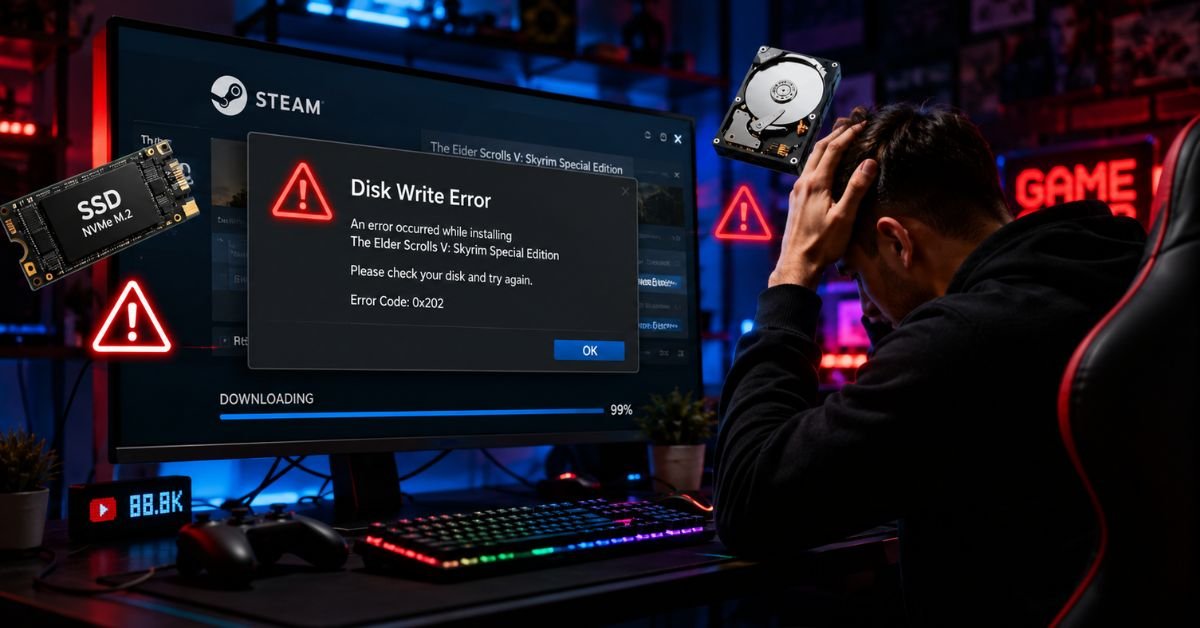
Wondering how to fix Steam disk write error? It usually comes down to one of four things: a read-only folder blocking Steam from saving files, antivirus software interfering with the download, a corrupted download cache, or an actual problem with your hard drive. Work through the fixes below in order most people solve it within the first three steps.
What Causes the Steam Disk Write Error?
A Steam disk write error fires whenever Steam tries to save or update a game file and something stops it from doing so. It’s not always a hardware problem. Most of the time, it’s a permissions issue or a software conflict.
Here’s a quick breakdown to help you zero in on the likely culprit:
| Error Cause | Most Likely Fix |
| Folder set to read-only | Fix 3: Remove read-only setting |
| Steam lacks admin rights | Fix 4: Run as administrator |
| Corrupted download cache | Fix 2: Clear download cache |
| Antivirus blocking Steam | Fix 6: Disable antivirus temporarily |
| Corrupt game files | Fix 5: Verify integrity of game files |
| Bad sectors on drive | Fix 7: Run CHKDSK |
| Drive is full or failing | Fix 8: Move Steam library to another drive |
Let’s fix it.
Fix 1: Restart Steam and Your PC
This sounds obvious. It works more often than it should.
Steam sometimes gets into a weird state mid-download especially after a network hiccup or a Windows update. A clean restart clears that.
- Close Steam completely. Don’t just click the X right-click the Steam icon in your system tray and select Exit.
- Restart your PC fully (not sleep or hibernate a full restart).
- Open Steam and retry the download.
If the error comes back immediately, move on. If it fixes it, great you’re done.
Fix 2: Clear Steam Download Cache
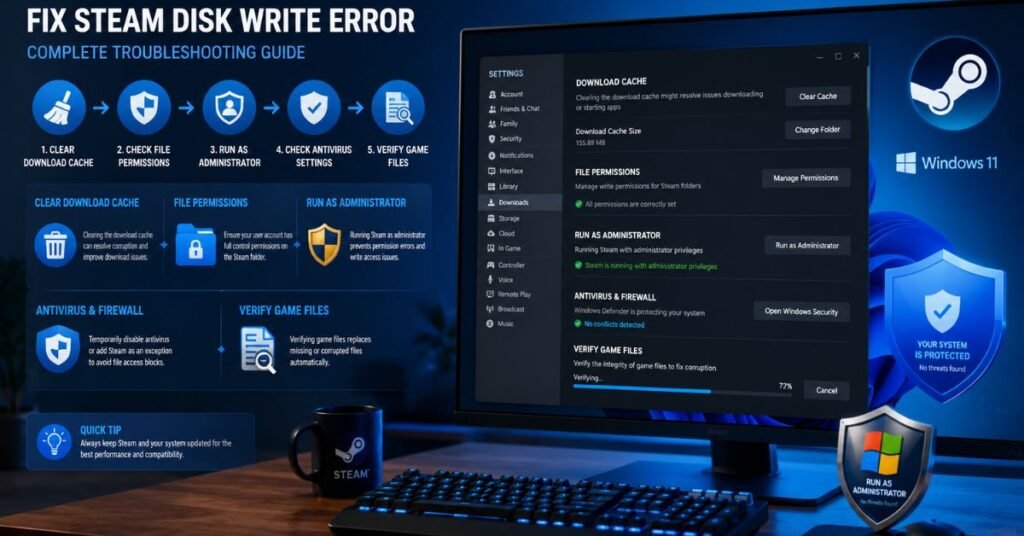
Steam keeps a local download cache to speed things up. When that cache gets corrupted, it causes all sorts of problems including the disk write error. Clearing it is safe and doesn’t affect your installed games.
- Open Steam and click Steam in the top-left corner.
- Go to Settings → Downloads.
- Click Clear Download Cache at the bottom of the page.
- Steam will restart. Log back in and try your download again.
This fix resolves the issue for a huge chunk of users. It’s fast, reversible, and takes under a minute.
Fix 3: Check the Library Folder for Read-Only Settings
This is one of the most common causes and one of the most overlooked. If your Steam library folder is set to read-only, Steam literally cannot write files to it, no matter what you do.
- Open File Explorer and navigate to your Steam folder. By default it’s at C:\Program Files (x86)\Steam.
- Right-click the Steam folder and select Properties.
- Under the General tab, look at the Attributes section at the bottom.
- If the Read-only checkbox is checked (or shows a filled square), uncheck it.
- Click Apply. Windows will ask if you want to apply changes to all subfolders select Yes, apply to all subfolders and files.
- Click OK, then relaunch Steam.
If Steam is installed on a different drive or in a custom folder, navigate there instead. The same steps apply.
Fix 4: Run Steam as Administrator
Sometimes Steam doesn’t have enough system permissions to write to certain folders especially on Windows 11 with tighter default security settings. Running it as administrator gives it full access.
- Close Steam completely (right-click the tray icon → Exit).
- Find the Steam shortcut on your desktop or search for it in the Start menu.
- Right-click Steam → select Run as administrator.
- If prompted by Windows UAC (User Account Control), click Yes.
To make this permanent so you don’t have to do it every time:
- Right-click the Steam shortcut → Properties.
- Go to the Compatibility tab.
- Check Run this program as an administrator.
- Click Apply → OK.
Fix 5: Verify Integrity of Game Files
If the disk write error is happening with one specific game rather than all of them, the game’s files are probably corrupted or incomplete. Steam can check and re-download just the missing or broken pieces without reinstalling the whole game.
- Open Steam and go to your Library.
- Right-click the affected game and select Properties.
- Click the Installed Files tab.
- Click Verify integrity of game files.
- Wait for the process to finish. It can take a few minutes depending on the game’s size.
Steam will automatically download and replace any files that fail the check. After it’s done, try launching or updating the game again.
Fix 6: Disable Antivirus Temporarily
Antivirus software can be overly aggressive; it sometimes flags Steam’s writing activity as suspicious and blocks it mid-download. This is especially common with Windows Defender, Malwarebytes, and certain free antivirus tools.
- Open your antivirus software.
- Look for a Disable, Pause protection, or Turn off option usually in the main dashboard or right-click tray menu.
- Disable it temporarily (choose 10–15 minutes if given an option).
- Restart Steam and retry the download.
If it works with antivirus off, you’ve found the culprit. Don’t leave your antivirus disabled permanently. Instead, add Steam as an exception:
- In Windows Defender: Go to Settings → Windows Security → Virus & threat protection → Manage settings → Add or remove exclusions → Add your Steam folder path.
- For third-party antivirus, look for a “Whitelist” or “Exclusions” section in the settings.
Fix 7: Run CHKDSK to Check Disk Health
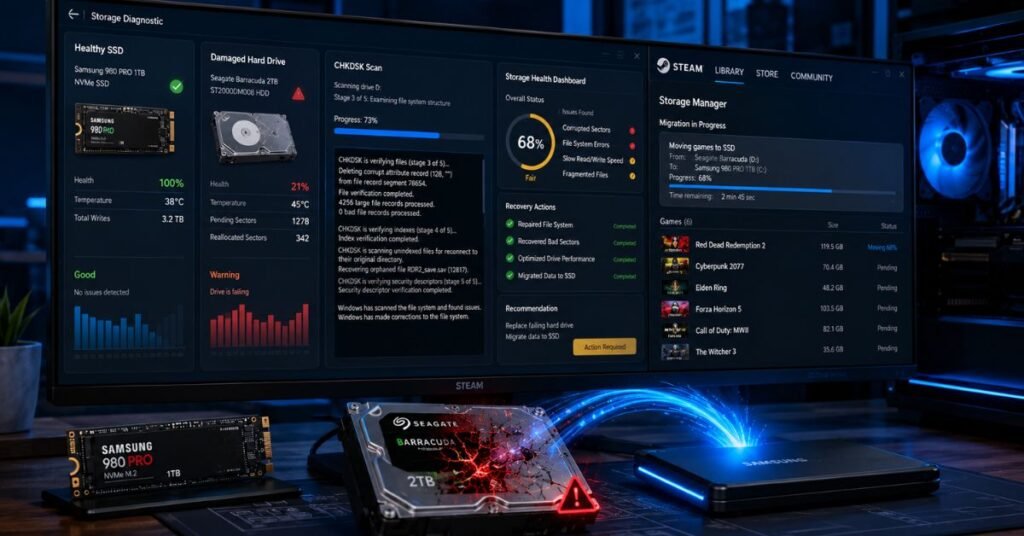
If none of the above has worked, your drive might have bad sectors of the disk that are physically damaged and can’t reliably store data. Windows has a built-in tool called CHKDSK that can detect and repair these.
Important: Save all your work before running this. CHKDSK requires a restart.
- Press Windows + S and search for Command Prompt.
- Right-click it and select Run as administrator.
- Type the following command and press Enter:
chkdsk C: /f /r
Replace C: with the drive letter where Steam is installed if it’s different.
- You’ll see a message saying CHKDSK can’t run right now and asking if you want to schedule it for the next restart. Type Y and press Enter.
- Restart your PC. CHKDSK will run before Windows loads; this can take 20–60 minutes depending on your drive size.
After it finishes, Windows boots normally. Open Steam and check if the error is gone.
The /f flag tells CHKDSK to fix errors. The /r flag tells it to scan for bad sectors and recover readable data. Both together give you a thorough disk health check.
Fix 8: Move Steam Library to a Different Drive
If CHKDSK found errors or your drive is nearly full, the smartest move is to shift your Steam library to a healthier drive. This also works if you just want Steam on an SSD for better performance.
- Open Steam and click Steam → Settings.
- Go to Storage (in newer Steam versions) or Downloads → Steam Library Folders.
- Click Add Drive or Add Library Folder and select a folder on your new drive.
- Once added, select that new location and set it as the default.
- Go to your Library, right-click a game → Properties → Installed Files → Move install folder → select the new location.
For large libraries, this takes time. But if your original drive is the problem, this is the fix that actually solves it at the root.
Still Getting the Error? When to Contact Steam Support
If you’ve tried all eight fixes and the disk write error is still there, it’s time to loop in Steam Support. A few situations where this is the right call:
- CHKDSK found significant errors or your drive shows signs of failure
- The error only happens with one specific game and verifying files didn’t fix it
- You’re getting the error on a brand-new installation on a healthy drive
To contact Steam Support: go to help.steampowered.com, sign in, click Games, Software, etc. → select the affected game → I’m having trouble with this game’s content or features.
Be ready to include your Steam logs (found at C:\Program Files (x86)\Steam\logs) they’ll speed up the diagnosis.
Frequently Asked Questions
Why does Steam keep giving me a disk write error?
The most common reasons are a read-only folder setting, Steam not having administrator permissions, a corrupted download cache, or antivirus software blocking Steam’s write operations. It’s rarely a hardware problem to start with the software fixes first (Fixes 1–6) before assuming your drive is dying.
Does disk write error mean my hard drive is failing?
Not necessarily. The error is named after the action that failed (writing to disk), not the hardware itself. In most cases it’s a permissions or software issue. That said, if you’re also seeing slow load times, frequent crashes, or CHKDSK reports bad sectors, your drive’s health is worth taking seriously.
How do I fix Steam disk write errors without losing games?
Every fix in this guide is non-destructive. Clearing the download cache, removing the read-only setting, running CHKDSK, and verifying game files will not delete your installed games. The only time you’d risk losing data is if your physical drive is failing, in which case backing up your game files before doing anything is a smart move.
Most Steam disk write errors come down to a read-only folder or a permissions issue both fixable in under five minutes. Work through the list from the top, and you’ll almost certainly have it sorted before you reach Fix 7. If CHKDSK does find real drive errors, treat that as a signal to back things up and plan ahead.