
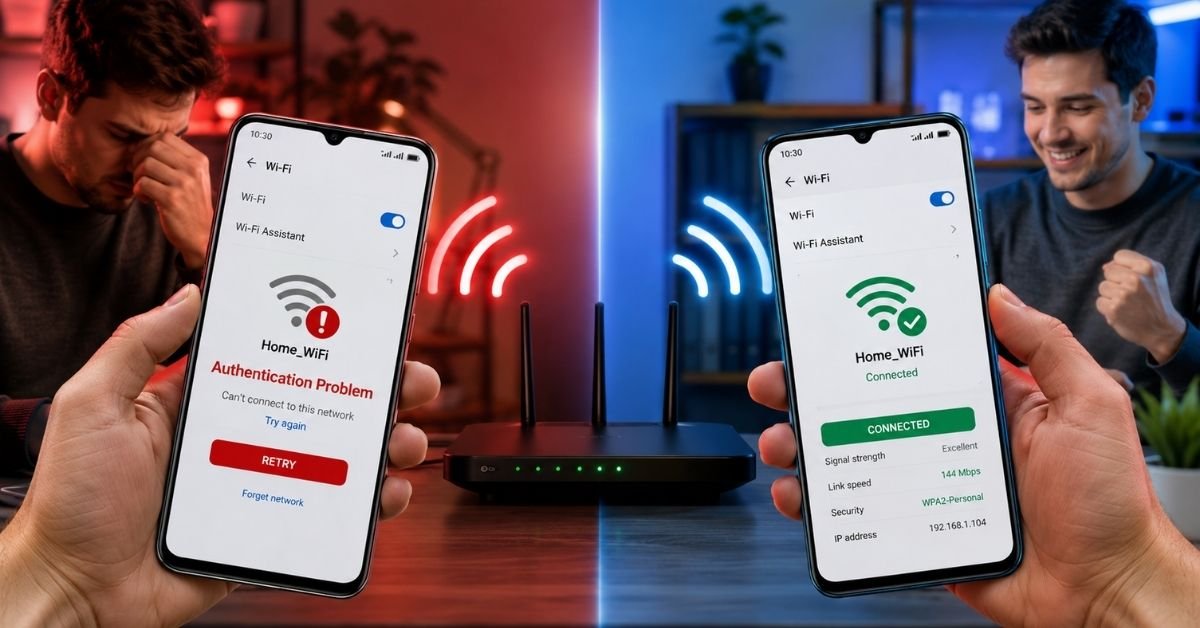
To fix a Wi-Fi authentication problem on Android, forget the network and reconnect, toggle airplane mode, double-check your password, or restart your router. If those don’t work, change your router’s security protocol to WPA2, assign a static IP, or reset network settings. Most cases are resolved within the first three fixes.
What Does “Authentication Problem” Mean on Wi-Fi?
It means your Android device tried to connect to the Wi-Fi network but couldn’t verify the credentials. Either the password was wrong, the network rejected your device, or something in your connection settings is conflicting.
A few common triggers:
- Your saved password no longer matches the router’s current password
- The router is set to a security protocol your Android doesn’t support
- There’s an IP address conflict on the network two devices trying to use the same address
- The router’s DHCP settings aren’t assigning your device an address properly
- Temporary bugs in your Android’s Wi-Fi stack
Cause → Fix at a Glance
| Cause | Best Fix |
| Wrong or outdated password | Fix 2: Forget and reconnect |
| Temporary network glitch | Fix 1: Airplane mode toggle |
| Router communication error | Fix 4: Restart router |
| Unsupported security protocol | Fix 5: Change to WPA/WPA2 |
| IP address conflict | Fix 6: Assign static IP |
| Device not getting an address | Fix 6: Assign static IP |
| Wrong frequency band | Fix 7: Switch to 2.4 GHz |
| Corrupted network settings | Fix 8: Reset network settings |
Fix 1: Toggle Airplane Mode On and Off
This takes ten seconds and clears more problems than it has any right to.Turning airplane mode on wipes your device’s active connections. Turning it back off forces Android to rebuild them from scratch.
- Swipe down from the top of your screen to open the notification shade.
- Tap the Airplane Mode icon to turn it on. Wait 10 seconds.
- Tap it again to turn airplane mode off.
- Wait for your Android Wi-Fi settings to reconnect automatically.
- If it doesn’t reconnect on its own, tap your network name manually.
Takes under 30 seconds. If the authentication problem android fix doesn’t kick in here, move to the next step.
Fix 2: Forget the Network and Reconnect
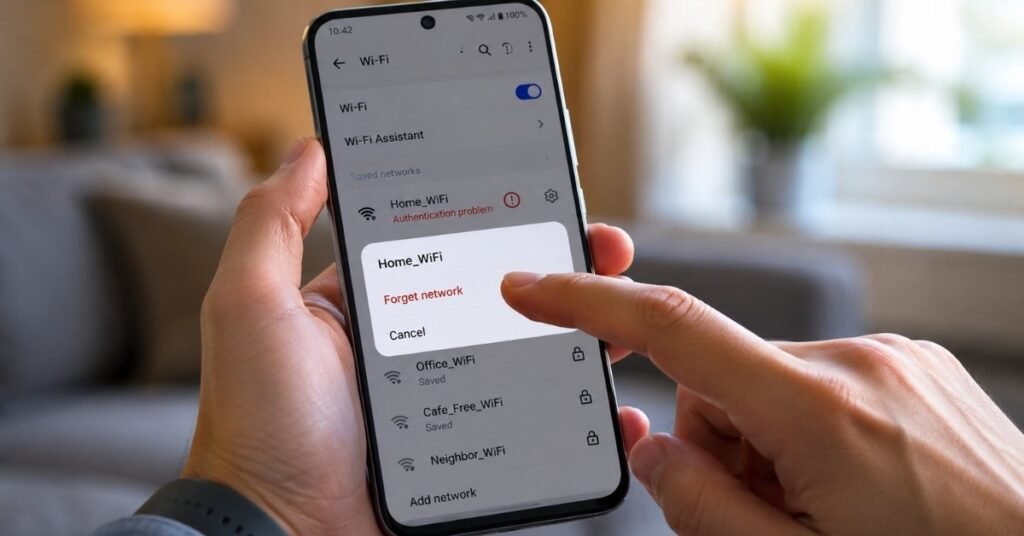
Your Android might be trying to connect with stale or corrupted network credentials. Forgetting the network clears all of that out.
Open Settings → Wi-Fi (or Connections → Wi-Fi on Samsung).
Long-press the network name showing the authentication error or tap the gear icon beside it.
Tap Forget network (or Forget).
The network will disappear from your saved list. Tap it again to reconnect.
Enter your Wi-Fi password carefully to check for caps lock, spaces, or special characters.
Tap Connect and wait.
If the menu options look different on your device, refer to the Android Wi-Fi settings guide for device-specific instructions.
This clears old credentials and forces your device to reauthenticate fresh. It solves the problem in a majority of cases..
Fix 3: Double-Check Your Wi-Fi Password
Simple but overlooked. If your router password was recently changed by you, a family member, or your ISP your saved password is wrong.
- On another device that’s already connected, open your router admin page (usually 192.168.1.1 or 192.168.0.1 in a browser).
- Log in and navigate to Wireless Settings → Security.
- Confirm your current Wi-Fi password.
- Back on your Android, forget the network (see Fix 2) and reconnect with the correct password.
If you’re not sure what your router’s admin credentials are, they’re usually printed on a sticker on the back of the router.
Fix 4: Restart Your Router
A stuck or overloaded router can reject connections even when everything else is fine. A reboot clears its memory and resets active sessions.
- Pull the power cable out of your router.
- Wait a full 30 seconds, don’t rush this part.
- Plug it back in and wait 60–90 seconds for it to fully restart.
- Try connecting your Android device again.
If you have a separate modem and router, restart both modems first, then router.
Fix 5: Change the Wi-Fi Security Protocol to WPA/WPA2
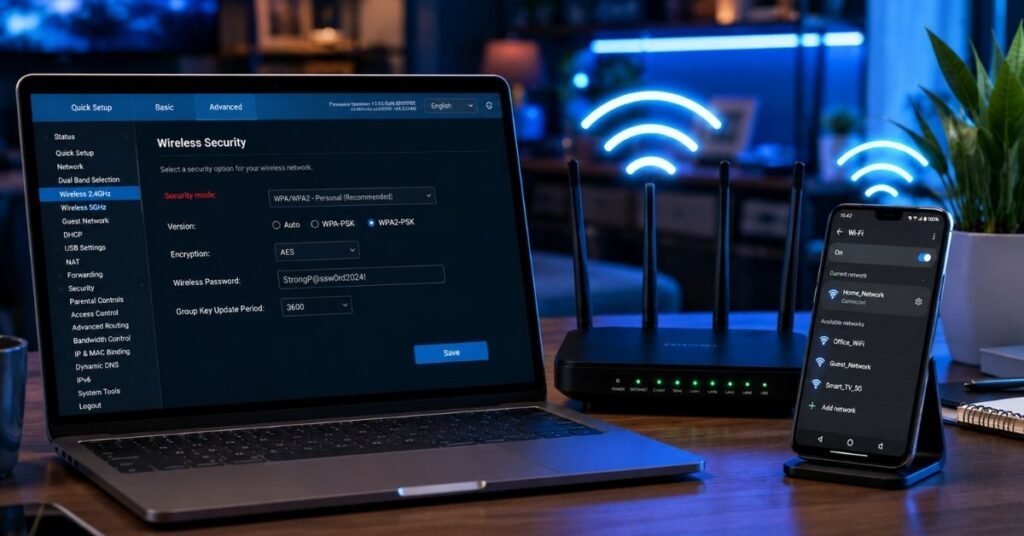
Some Android devices struggle with WPA3 or mixed-mode security settings, especially older phones. Forcing the router to use WPA2 (AES) is a reliable fix for authentication errors caused by protocol mismatches.
Open a browser on a connected device and go to your router’s admin page, usually 192.168.1.1.
Log in with your router credentials (printed on the device or in your ISP’s setup guide).
Find Wireless Settings → Security Mode or Encryption.
Change the setting to WPA2-PSK with AES encryption.
Save the settings. Your router will restart automatically.
Reconnect your Android device using your Wi-Fi password.
If you’re unsure where to find these settings on your specific router model, check your manufacturer’s support documentation or visit the TP-Link Support Center for step-by-step router configuration guides.
WPA2 (AES) is the most universally compatible setting for Android devices. Avoid TKIP. It’s older and can cause issues on modern phones.
Fix 6: Assign a Static IP to Your Device
If your router’s DHCP settings are failing to assign an IP to your Android, you’ll see repeated authentication errors even when the password is correct. Manually assigning a static IP bypasses the DHCP process entirely.
- Go to Settings → Wi-Fi.
- Long-press your network name → tap Modify network or the gear icon.
- Tap Advanced options (you may need to scroll down).
- Under IP settings, change DHCP to Static.
- Fill in the following:
- IP address: 192.168.1.200 (use a high number to avoid conflicts with other devices)
- Gateway: 192.168.1.1 (your router’s IP)
- DNS 1: 8.8.8.8
- DNS 2: 8.8.4.4
- Network prefix length: 24
- Tap Save and reconnect.
This eliminates IP address conflict issues and gives your Android a guaranteed address on the network.
Fix 7: Check the Wi-Fi Frequency Band (2.4 GHz vs 5 GHz)
Modern routers broadcast on both 2.4 GHz and 5 GHz. Older Android devices or those with weaker Wi-Fi chips sometimes fail to authenticate on 5 GHz networks, especially at medium range.
- Check whether your router broadcasts separate SSIDs for each band (e.g., “HomeWiFi” and “HomeWiFi_5G”).
- If yes, try connecting to the 2.4 GHz network instead of 5 GHz.
- If your router uses a single unified SSID, log into your router admin panel.
- Under Wireless Settings, temporarily disable the 5 GHz band.
- Try reconnecting your Android device.
The 2.4 GHz band has better range and broader device compatibility. It’s slower for data-heavy tasks, but it’ll tell you fast whether the frequency was causing the authentication error.
Fix 8: Factory Reset Network Settings
If nothing above has worked, your Android’s network configuration might be corrupted at the system level. Resetting network settings wipes all saved Wi-Fi passwords, Bluetooth pairings, and mobile data settings but it also clears whatever bug was blocking authentication.
- Go to Settings → General Management (Samsung) or System → Reset options (stock Android).
- Tap Reset network settings or Reset Wi-Fi, mobile & Bluetooth.
- Confirm the reset. Your device will restart.
- Open Android Wi-Fi settings, find your network, enter the password, and reconnect.
Note: You’ll need to re-enter passwords for all your saved networks after this.
If you're dealing with other system errors too, our guide on how to fix Windows Update errors covers the most common ones step by step.
Authentication Problem on Hotspot Specifically?
Hotspot authentication problems follow the same logic but have a few unique causes.
If your phone can’t connect to someone else’s hotspot:
- Forget the hotspot network and reconnect.
- Ask the hotspot owner to toggle their hotspot off and back on.
- Make sure the hotspot password doesn’t include unusual special characters; some Android versions mishandle them.
- Have the hotspot owner check their band setting. On many Android phones, mobile hotspot defaults to 5 GHz. Switching it to 2.4 GHz often resolves the issue immediately.
If others can’t connect to your hotspot:
- Turn your hotspot off and on again.
- Check the hotspot password under Settings → Connections → Mobile Hotspot.
- Change the security to WPA2-Personal if it’s set to anything else.
- Set the AP band to 2.4 GHz for maximum compatibility.
- Disconnect other devices connected to the hotspot some carriers limit simultaneous connections.
FAQs
Why does my Android keep saying authentication problems?
The most common reasons are a changed Wi-Fi password, an IP address conflict, or a mismatch between the router’s security protocol and what your Android supports. Forgetting the network and reconnecting fixes it in most cases. If it keeps happening, try assigning a static IP or switching your router to WPA2-AES.
Authentication problem but password is correct what do I do?
If the password is definitely right, the issue is likely an IP conflict, a DHCP failure, or a protocol mismatch. Start with Fix 6 (static IP), then Fix 5 (WPA2 security protocol). Also try restarting your router sometimes it simply gets stuck rejecting a device even with valid credentials.
How do I fix the authentication problem on my hotspot?
First, forget the hotspot on the connecting device and reconnect. Then have the hotspot owner switch the band to 2.4 GHz and confirm the security is set to WPA2-Personal. If it’s an Android hotspot, toggling it off and back on usually clears temporary connection errors.
Most Wi-Fi authentication errors on Android are fixable without touching any advanced settings, forgetting the network or restarting your router handles the majority. If you’re still stuck after going through all eight fixes, the problem is likely with the router itself or your ISP, and a call to support is your next move.