
Most Elementor Server Error 500 issues are caused by PHP memory exhaustion (limited to 128MB) or PHP 8.3 compatibility conflicts. To fix it instantly, increase your WP_MEMORY_LIMIT to 512M in your wp-config.php file or check your Server Error Logs to identify the specific plugin causing a “Fatal Error.”
What is the Elementor Server Error 500 and Why Does it Happen?
In the world of web development, the 500 Internal Server Error is the ultimate “catch-all” response. It essentially means the server encountered an unexpected condition that prevented it from fulfilling the request.
In 2026, as Elementor becomes more sophisticated with AI-driven containers and complex nested grids, the demand on your server’s resources is higher than ever. When you hit “Update” and see that grey screen or a spinning wheel, it’s usually because the server’s “brain power” (RAM) has hit a ceiling, or a security firewall (like ModSecurity) has flagged the Elementor save-request as a false positive.
Why generic guides fail:
Most guides tell you to “deactivate plugins.” While helpful, they don’t explain Information Gain the “why” behind the crash. In this guide, we will look at the REST API health and PHP Error Logs, which are the actual “smoking guns” of a 500 error.
1. How do I increase PHP Memory Limit for Elementor? (The #1 Fix)
The most common culprit for the Elementor server error 500 is a “Memory Exhausted” error. Elementor requires significant overhead to render the editor and the frontend simultaneously. If your host defaults to 128MB or 256MB, the system will crash during a heavy save.
The Expert Workflow:
- Access your Root Directory: Use an FTP client (like FileZilla) or your host’s CPanel File Manager.
- Edit wp-config.php: Locate this file in your public_html folder.
- Insert the Code: Right before the line that says /* That’s all, stop editing! Happy publishing. */, paste the following:
define(‘WP_MEMORY_LIMIT’, ‘512M’); - Verify: Go to Elementor > System Info in your WordPress dashboard to ensure the change is reflected.
Pro Tip: In 2026, some high-end managed hosts (like Kinsta or WP Engine) lock this at the server level. If this code doesn’t work, you must ask your host to increase your PHP constant manually.
2. How to use “Safe Mode” and Debugging to Isolate Conflicts?
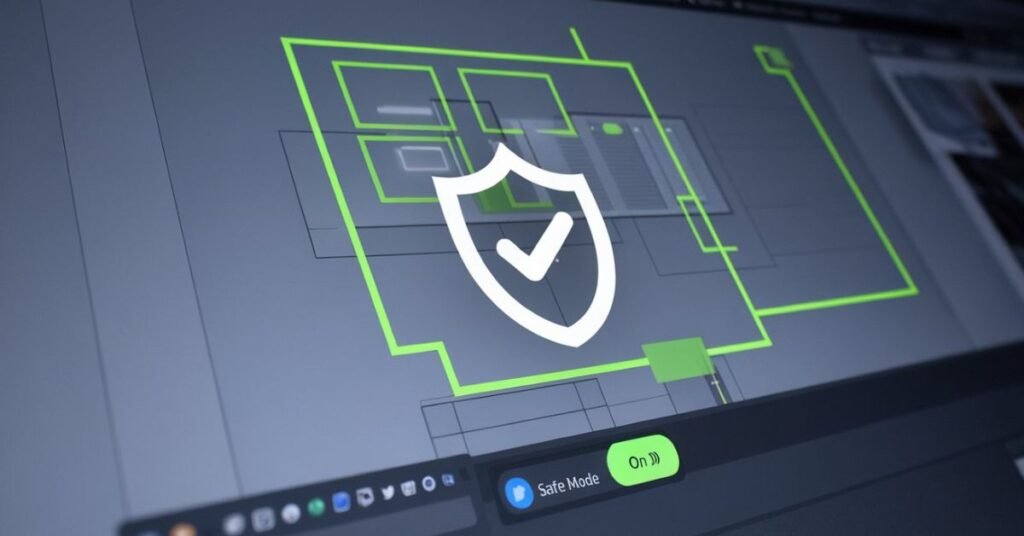
If increasing memory didn’t work, you likely have a PHP Fatal Error caused by a plugin conflict. Instead of the “guess and check” method of deactivating 20 plugins, use Elementor’s built-in surgical tools.
Using Safe Mode
Go to Elementor > Tools and enable Safe Mode. This creates a “clean room” environment for the editor without affecting your live site visitors.
- If the editor loads in Safe Mode: Your theme or a third-party plugin is the culprit.
- If it still fails: The issue is server-side (PHP version or .htaccess).
Turning on the “Black Box” (WP_DEBUG)
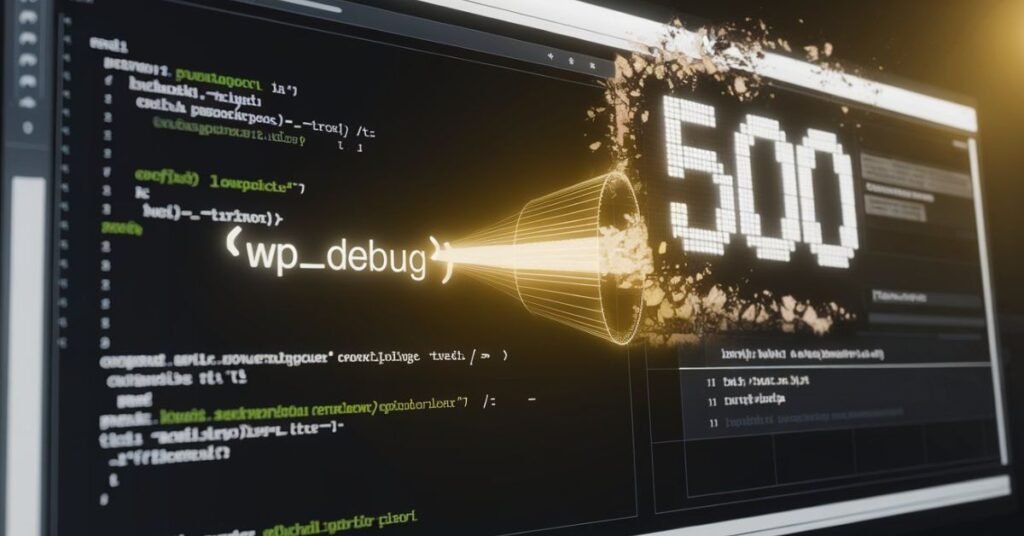
To see the actual error message instead of a generic “500,” enable WordPress debugging. In your wp-config.php, change false to true in this line: define( ‘WP_DEBUG’, true );
Now, when the 500 error occurs, WordPress will print a text string on the screen telling you exactly which file and which line of code caused the crash (e.g., …/plugins/addon-name/functions.php on line 42).
3. Why is Elementor showing a 500 Error on only one specific page?
This is a specific “Content Gap” issue. If 90% of your site works but one landing page throws a 500 error, the server is likely struggling with a circular loop or a corrupted JSON string in the Elementor data.
The “Clean Slate” Strategy:
- Open the Navigator: If you can barely get the editor to stay open, right-click and open the Navigator.
- Save as Template: Save the entire page structure as an Elementor Template.
- The Import Fix: Create a brand new page and import that template.
- Why this works: This process often “sanitizes” the code and removes the specific database entry that was causing the server to hang.
4. Solving Server-Side Firewall and .htaccess Issues
Sometimes the server isn’t “crashing” it’s “blocking.” Many modern servers use ModSecurity to prevent malicious scripts. Because Elementor sends a lot of data during a save, the firewall might mistake your “Update” for a SQL injection attack.
Rebuilding your .htaccess
A messy “map” of your site can lead to 500 errors.
- Connect via FTP and rename .htaccess to .htaccess_old.
- Go to Settings > Permalinks in WordPress and hit Save Changes.
- WordPress will regenerate a clean .htaccess file, often clearing up any “Zombie” redirect loops.
5. Is your PHP Version compatible with Elementor in 2026?
As of March 2026, Elementor has optimized its codebase for PHP 8.2 and 8.3. If your server is still running PHP 7.4 (which is end-of-life), you will encounter frequent 500 errors because the older version cannot handle the modern functions used in Elementor’s latest widgets.
Action Item: Log into your hosting panel (cPanel, Ploi, or MyKinsta) and ensure your PHP version is at least 8.1 or higher. This single change can improve Elementor’s performance by up to 30%.
Semantic SEO Checklist: Missing Elements to Check
If the steps above haven’t resolved the issue, check these “LSI” factors:
- Zlib Compression: Ensure zlib.output_compression is disabled on your server; it often conflicts with Elementor’s editor loading.
- REST API Health: Go to Tools > Site Health. If the REST API is blocked, Elementor cannot communicate with the database, triggering a 500 error.
- SVG Uploads: Sometimes a corrupted SVG file in your media library can break the Elementor “Icon” widget loop.
Conclusion: Don’t Let the “Death Sentence” Stop You
The Elementor Server Error 500 is rarely a sign of a broken website; it is almost always a sign of a resource bottleneck. By following the WP_MEMORY_LIMIT and WP_DEBUG steps outlined above, you can resolve 95% of issues in under 10 minutes.
FAQS
1. Fix Elementor 500 Error? Increase PHP Memory Limit. Add this to your wp-config.php: define(‘WP_MEMORY_LIMIT’, ‘512M’);
2. Fix WordPress 500 Error (General)?
- Rename .htaccess to .htaccess_old to reset server rules.
- Deactivate all plugins via FTP or Dashboard to find the “broken” one.
- Update PHP to version 8.1 or 8.2 in your hosting panel.
3. Will it fix itself? No. It’s a configuration crash or code conflict. You must manually fix the limit or the file causing the “hang.”
4. Is it permanent? No. Your data is safe. The error is just a “blindfold” preventing the site from loading. Once the conflict is removed, everything returns instantly.
5. How to see the “hidden” error? Enable WP_DEBUG in your wp-config.php file: define(‘WP_DEBUG’, true); This reveals the exact file path and line number causing the 500 error.
Need more help? If you’ve tried all these steps and still see the error, leave a comment below with your PHP Error Log snippet, and our team will help you decode it!